When to use this method?
Use this method when you:
- Want to use payment providers other than Shopify Payments
- Want to combine preorders with third-party apps (for example: subscriptions or bundles)
In these cases, you cannot use Shopify Selling Plans, which means REZ Discount, REZ Partial Payment, and REZ Shipping are not available.
Step 1: Add the discount to your REZ campaign (for display)
Add the same discount to your REZ campaign so the discount information can be displayed on the product page.
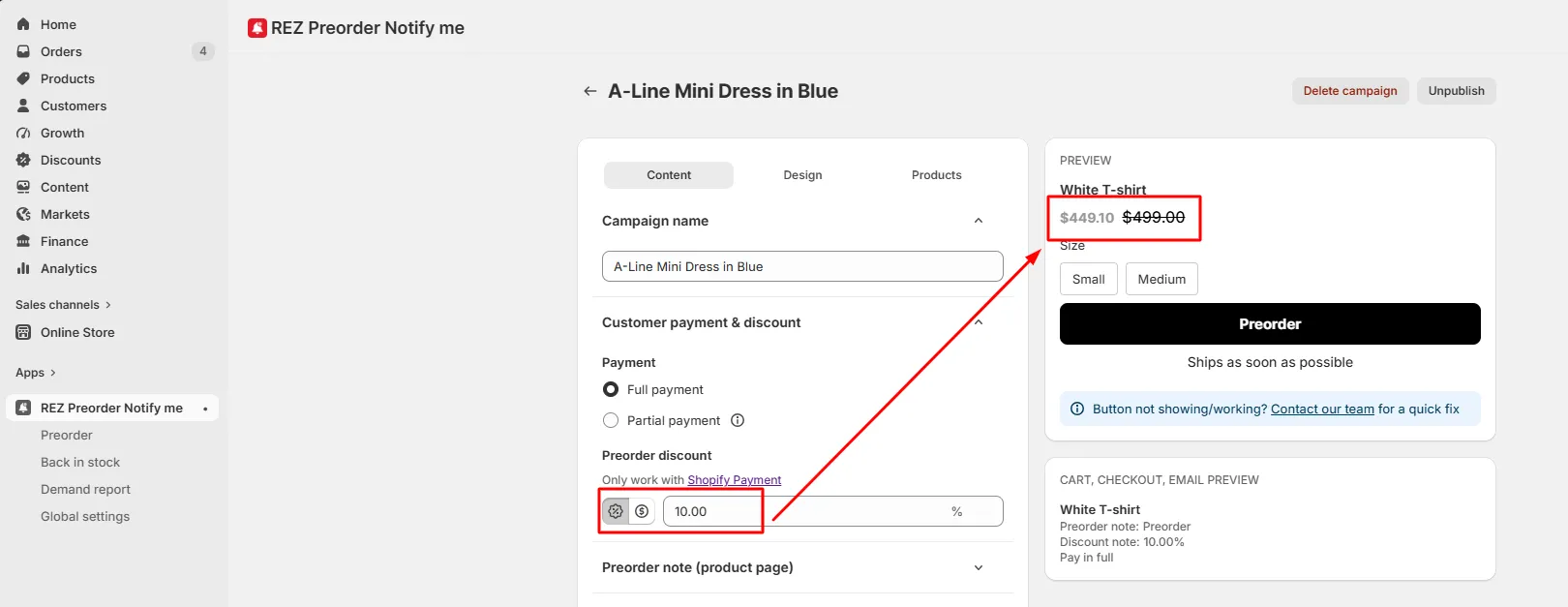
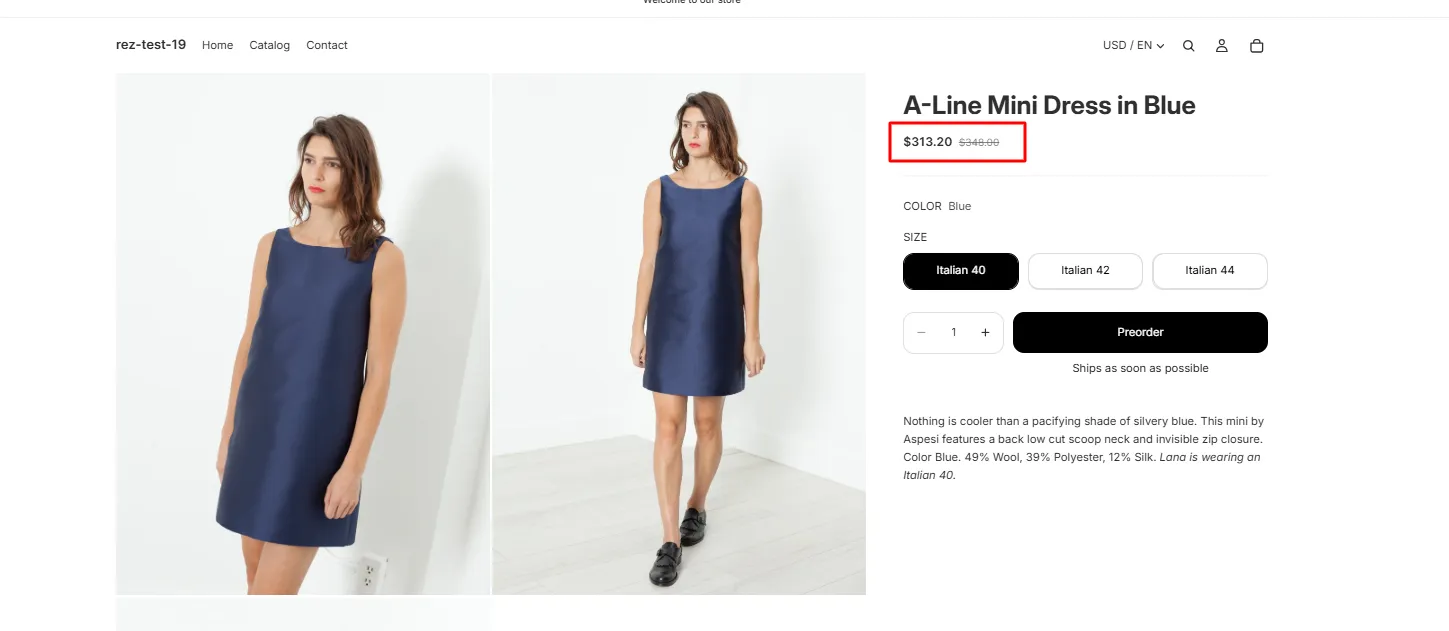
This helps customers see the reduced preorder price (on product page) before checkout.
Step 2: Create a Shopify discount (for functionality)
- Go to Shopify Admin
- Select Discounts
- Click Create discount
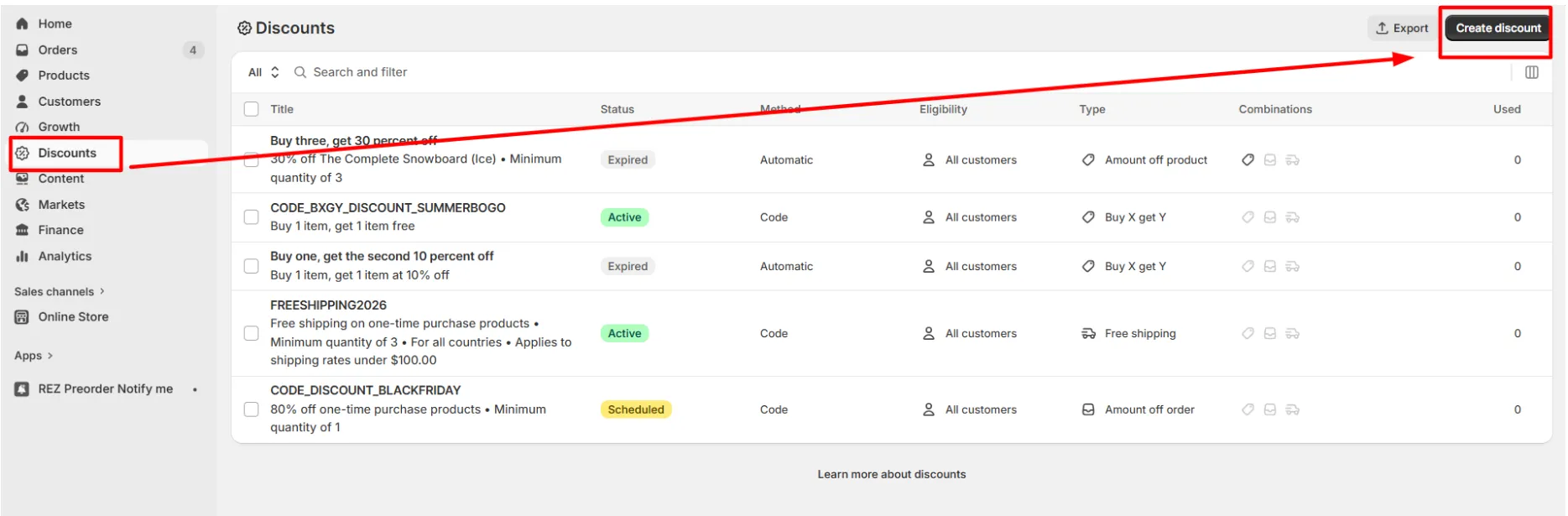
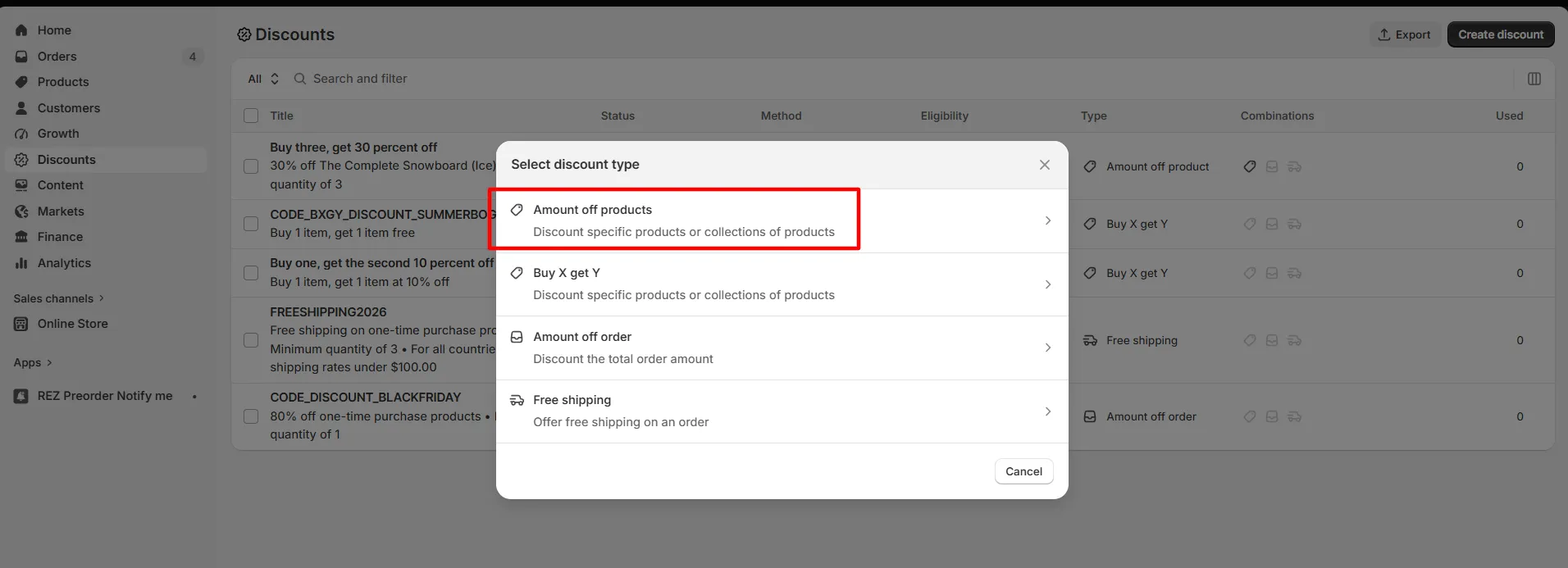
Step 3: Choose Discount Type
Select Amount off products → Fixed discount (example: $10 off)
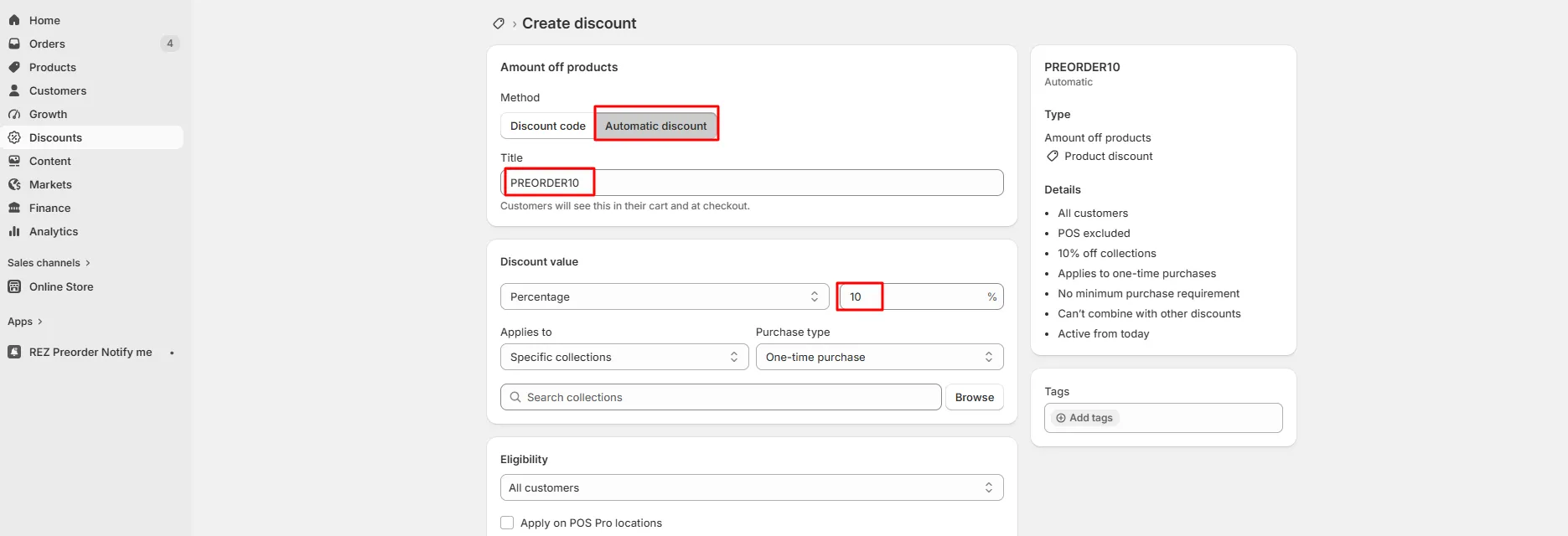
Step 4: Configure Discount Details
Choose: Automatic discount → Applied automatically at cart and checkout
Fill in the discount settings:
- Discount name
- Discount value
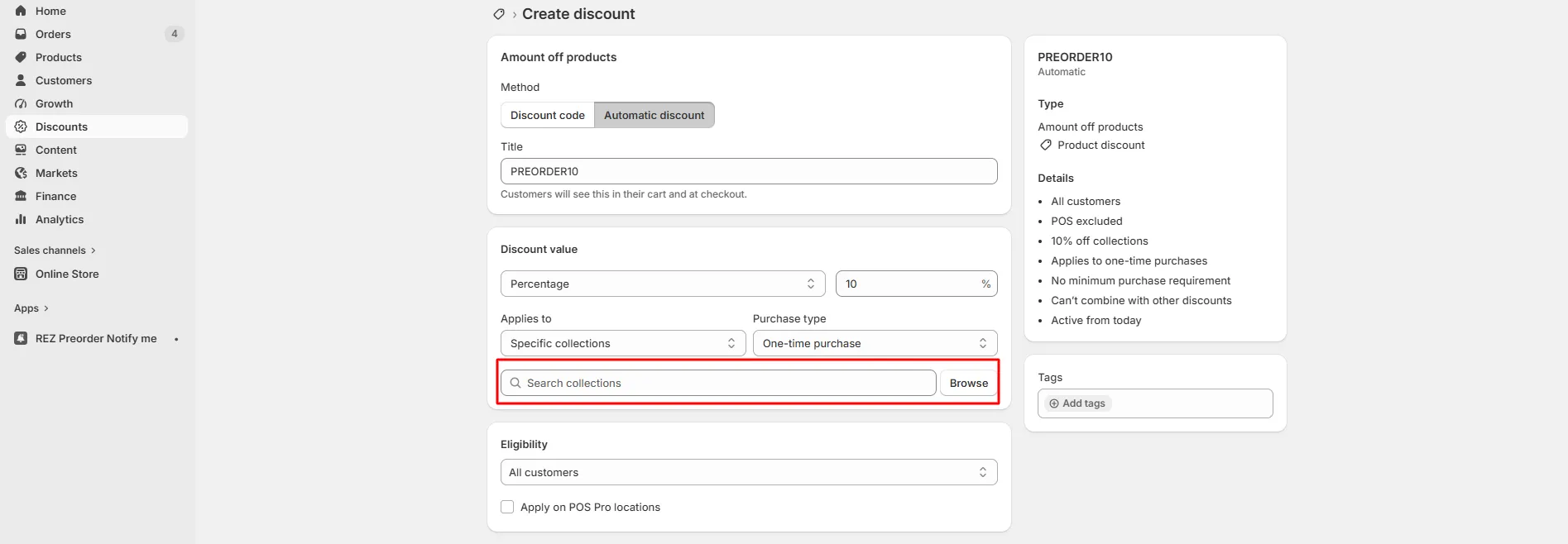
Step 5: Select Preorder Products for Discount
Under Applies to, choose: Specific collections or Specific products
For easier management, group all preorder items into a dedicated collection (e.g. Preorder) and apply discounts at the collection level. This avoids updating discount rules every time you add new preorder products.
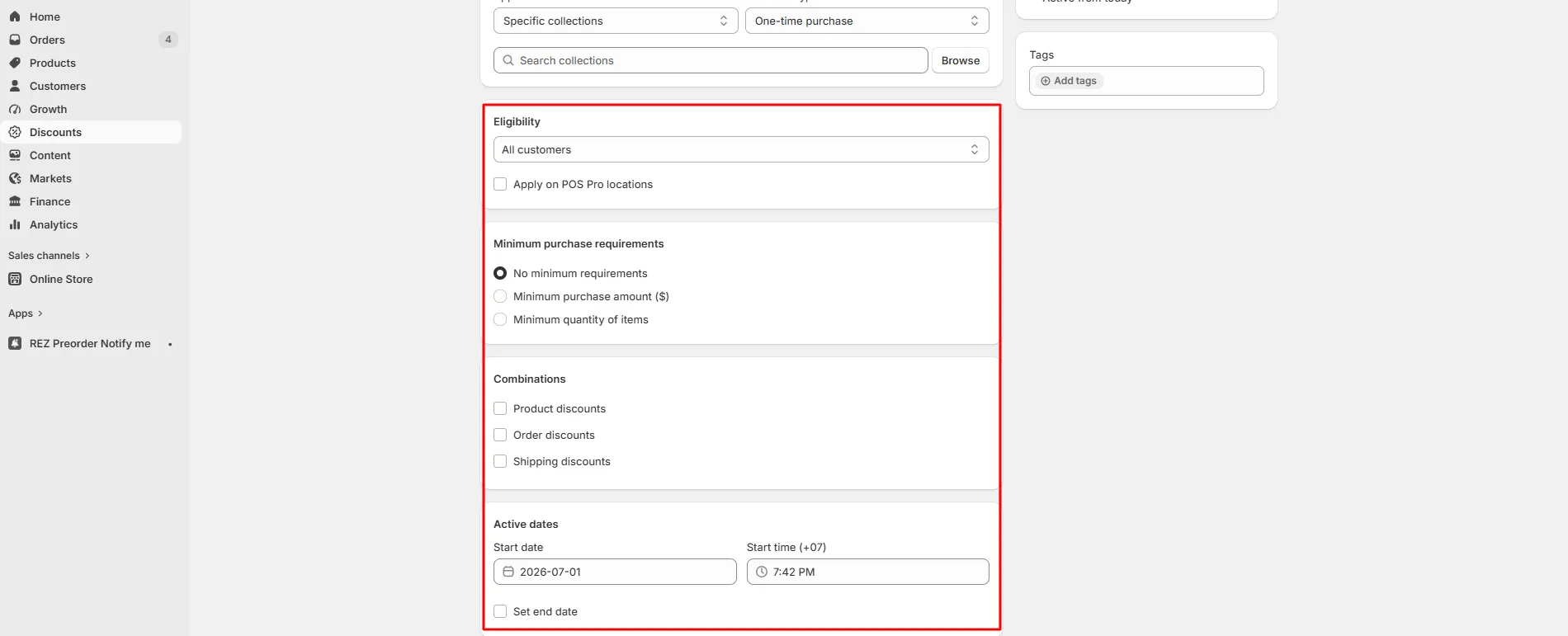
Step 6: Set Eligibility Rules (Optional)
Configure additional conditions if needed:
- Minimum purchase amount
- Minimum quantity
- Customer eligibility
- Usage limits
- Start and end dates
Step 7: Save and Test
- Click Save
- Visit your storefront
- Add a preorder product to cart
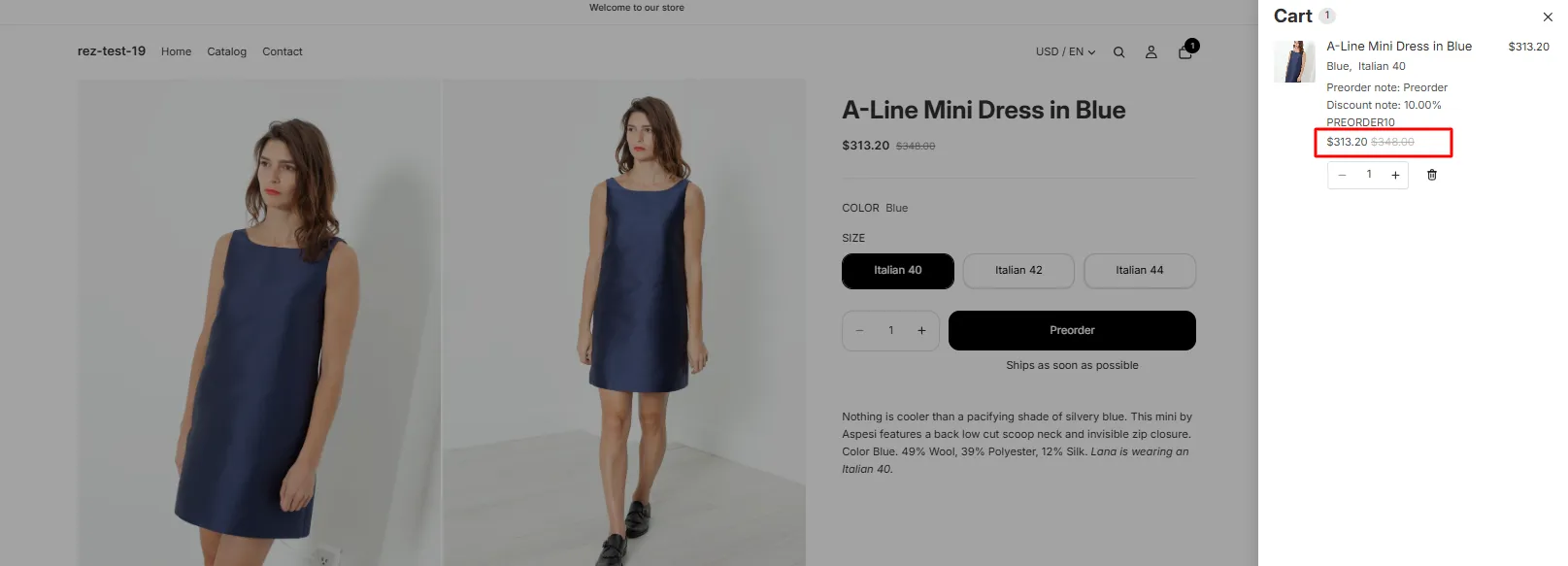
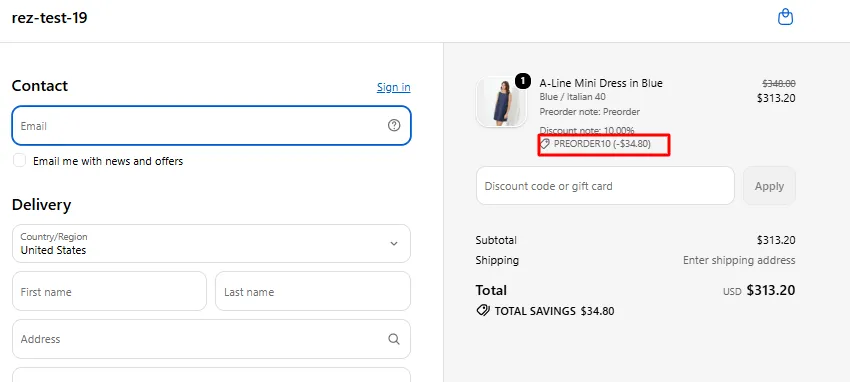
- Confirm the Shopify discount is automatically applied in cart and checkout