✅ Step-by-Step Instructions
Step 1: Upload Your Logo to Shopify Files
- Log into your Shopify admin dashboard.
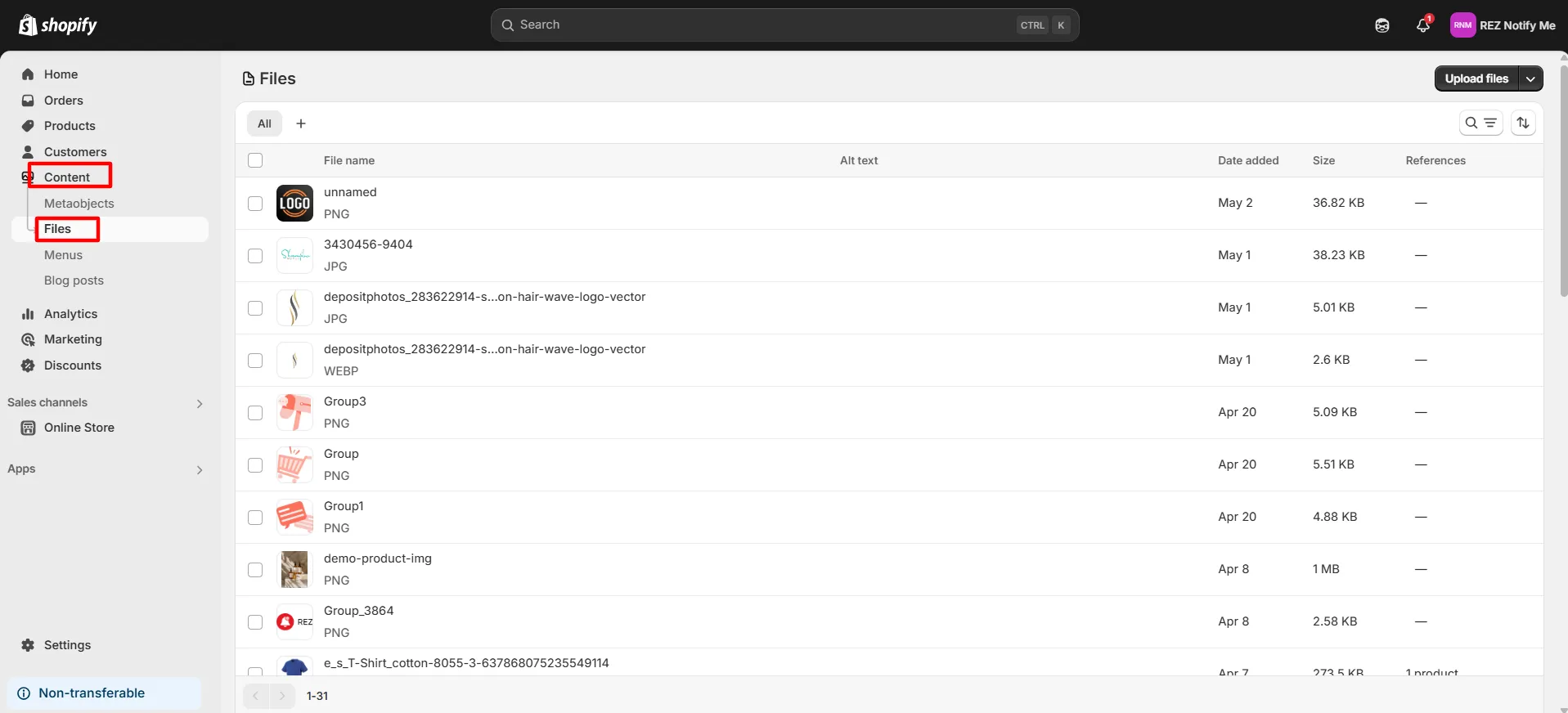
- In the left-hand menu, click Content → Files.
- Click the Upload files button.
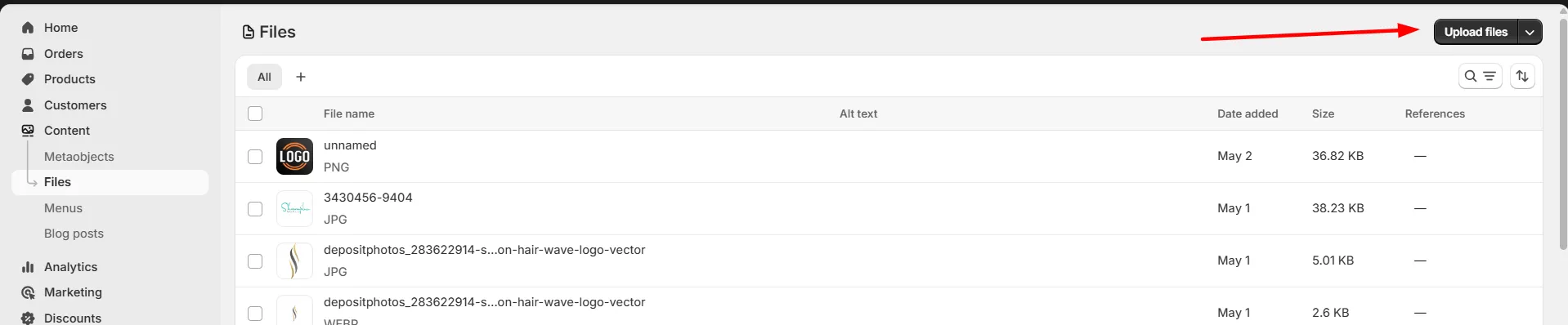
- Select your logo image file (PNG, JPG, SVG, etc.) from your computer.
Step 2: Copy the CDN URL
- Click the link icon or right-click on the file name and choose Copy link address.

- The link should look like this:
https://cdn.shopify.com/s/files/1/xxxx/xxxx/files/logo.png?v=123456
Step 3: Paste the CDN Link into the Logo Box
- Go to REZ Notify Me app > Customize Email Notification
- Find the Logo Image Link
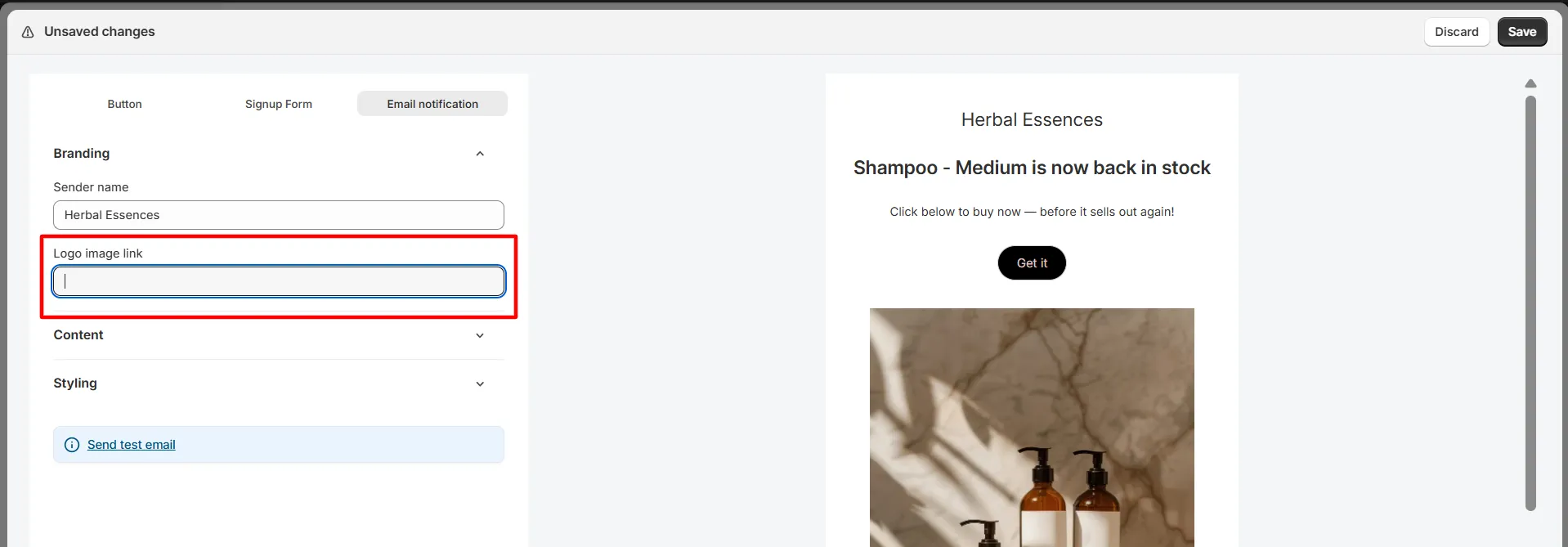
- Paste the copied Shopify CDN URL into that field.
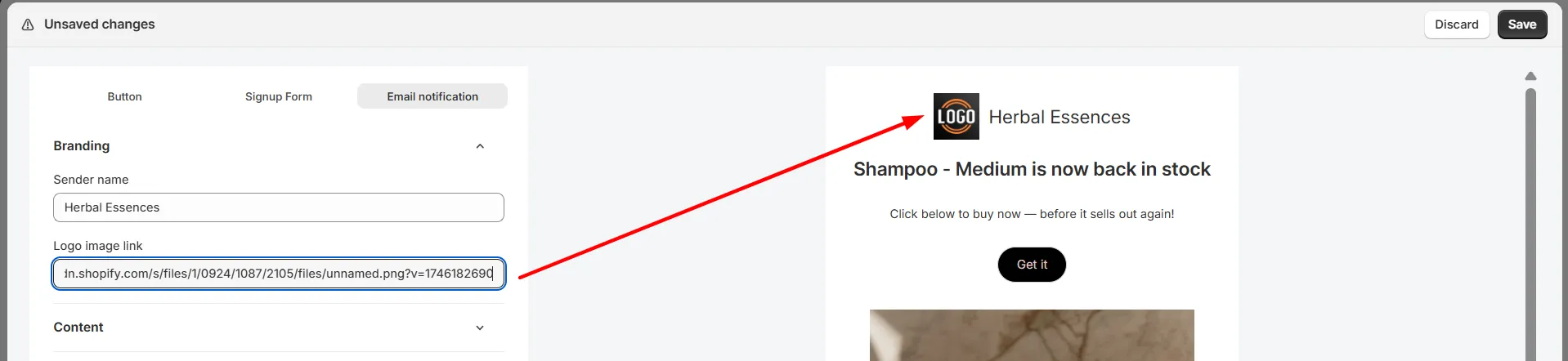
- Save the changes.
✅ Your logo should now appear wherever the logo box or image field is used.
🖼️ Pro Tips
- Use PNG or SVG for better quality logos with transparency.
- Always upload images with clear file names (e.g.,
brand-logo.png). - If your logo doesn’t appear, double-check that the link is correct and publicly accessible.
Related
Back in stock setup guideline · View customer email requests for an out-of-stock product · Change email sender address