What is DKIM and Why It Matters?
DKIM (DomainKeys Identified Mail) is a security feature that helps ensure your emails are not marked as spam.
It tells email services (like Gmail, Yahoo, Outlook) that your emails are truly sent by you — not by spammers pretending to be you.
3 Steps to add DKIM Records
If you haven’t add DNS records before, we suggest you follow these step-by-step video guides for popular domain providers:
Shopify domain
Steps:
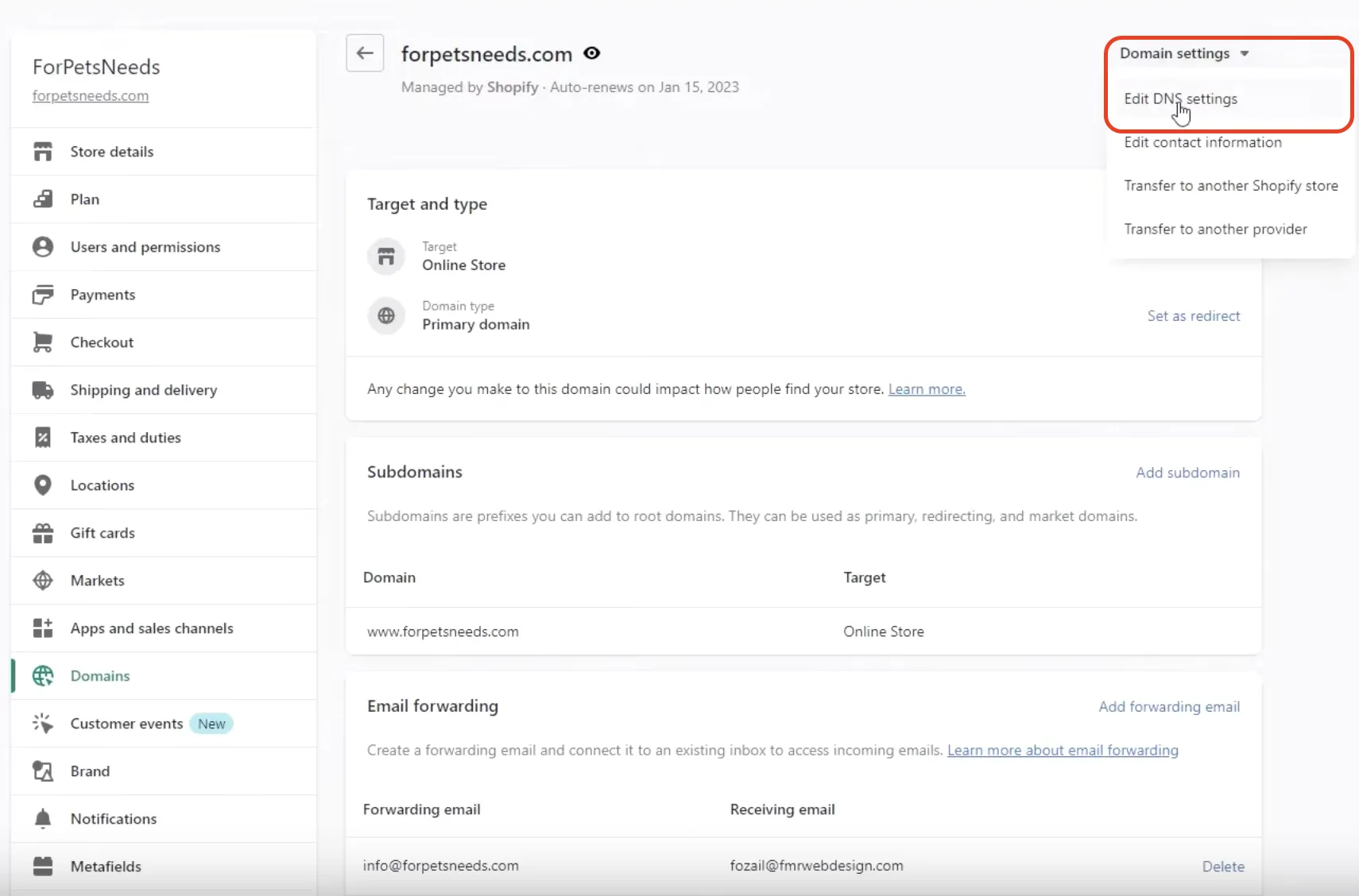
- From your Shopify admin, go to Settings > Domains.
- Click the domain that you want to configure.
- Click Domain settings > Edit DNS settings.
- Click Add custom record, and then select the record type that you want to add.
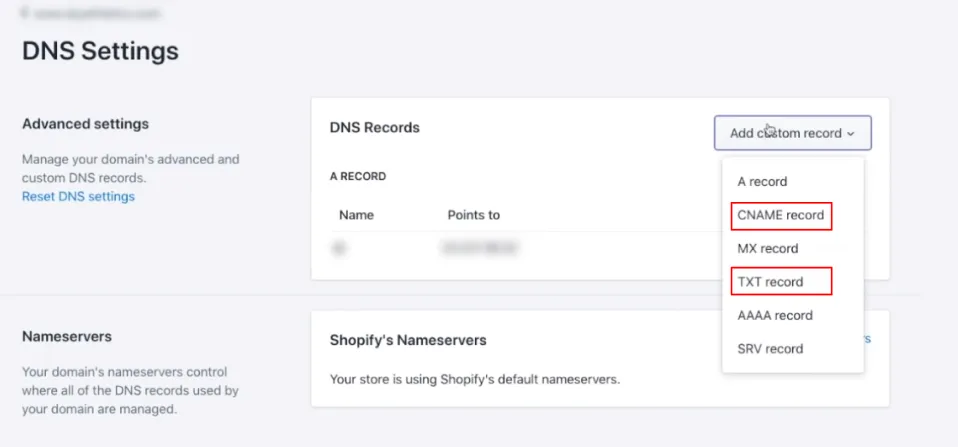
- Enter the required details for the record, and then click Confirm.
- GoDaddy: Click me (Youtube)
- Cloudflare: Click me (Youtube)
- Namecheap: Click me (Youtube)
- Google Domains: Click me (Youtube)
1. Get Your DKIM Record
Go to email notification > email sender address > custom domain. You will see the yellow warning banner. If you don’t see it, you might need to refresh the app page
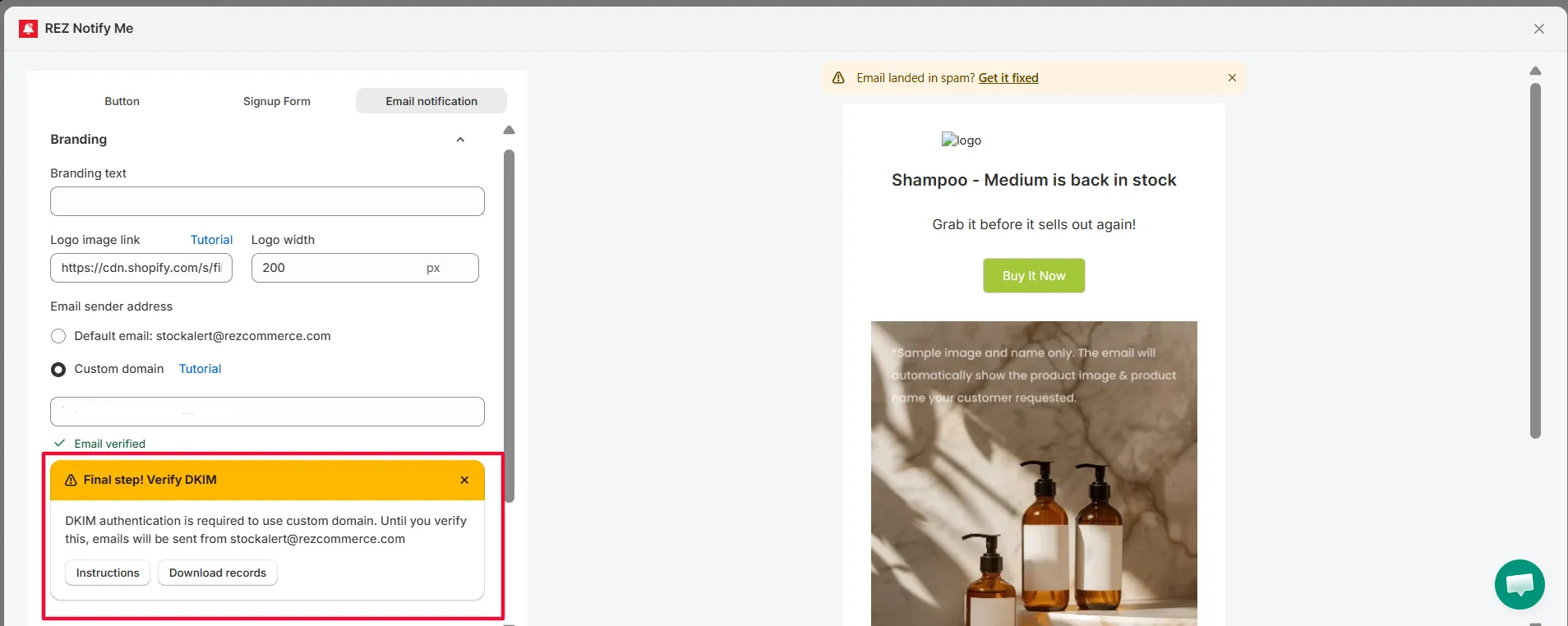
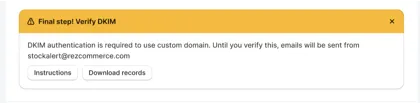
Download the DKIM record we generated for your domain, click “download records”
2. Open Your Domain’s DNS Settings
Log in to the company where you registered your domain (like GoDaddy, Namecheap, Cloudflare, Google Domains, etc.).
Find the section called DNS Settings, Manage DNS, or Zone Editor.
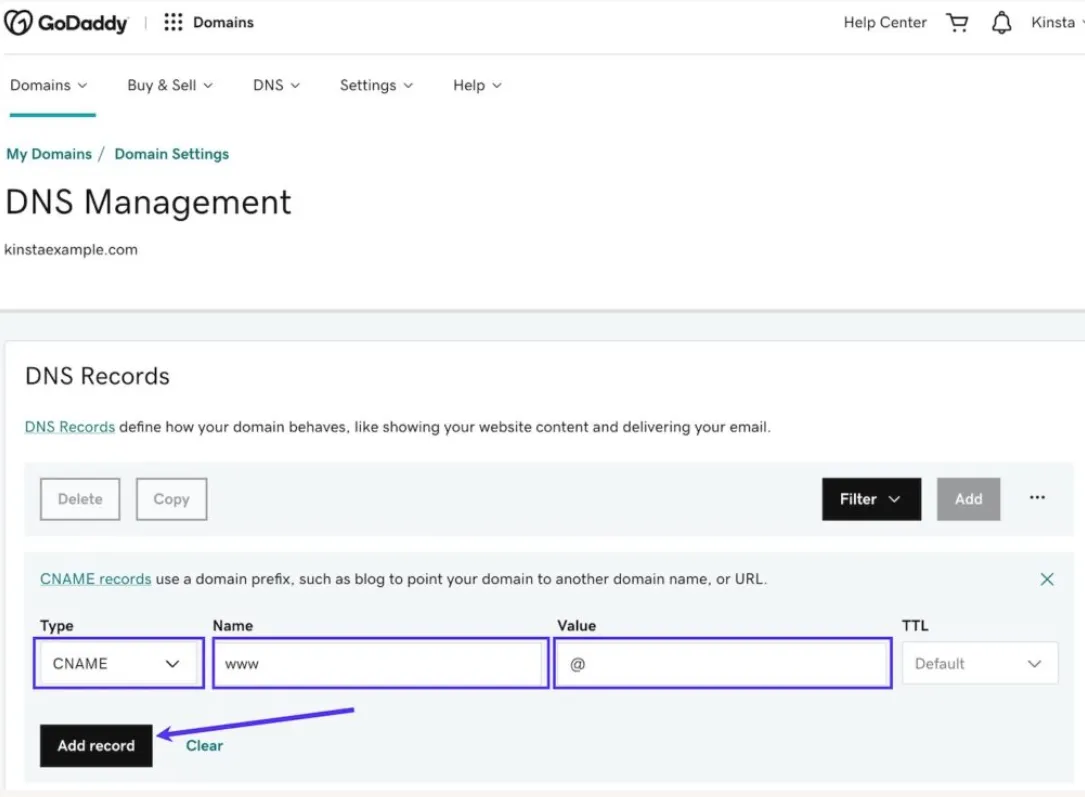
Example on GoDaddy: DNS management
3. Add Records To Your DNS
There are 3 values you need to add for each row: Type, Name, Value
Type — Choose CNAME/TXT/DMARC exactly as shown in the csv file.
Name / Host — Copy from the “Name / Host” column.
Value — Copy exactly from the “Value” column.
4. Save the changes
These DNS records are required to verify your domain, allowing our email service to send messages on your behalf.
Once you’ve added the records, please let us know — or reach out if you need any assistance.
Related
Back in stock setup guideline · View customer email requests for an out-of-stock product · Change email sender address