If customers can’t add a preorder item to the cart, it’s usually because the preorder option hasn’t been properly applied to the product. Please try the steps below:
Issue
If customers can’t add a preorder item to the cart, and it has the issue like below:
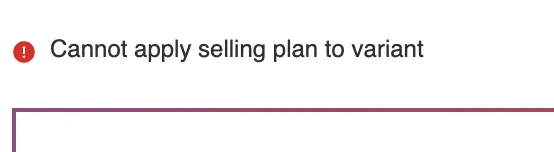
Reason
The purchase option was not added correctly to your product, so Shopify doesn’t recognize it as a preorder item when adding to cart.
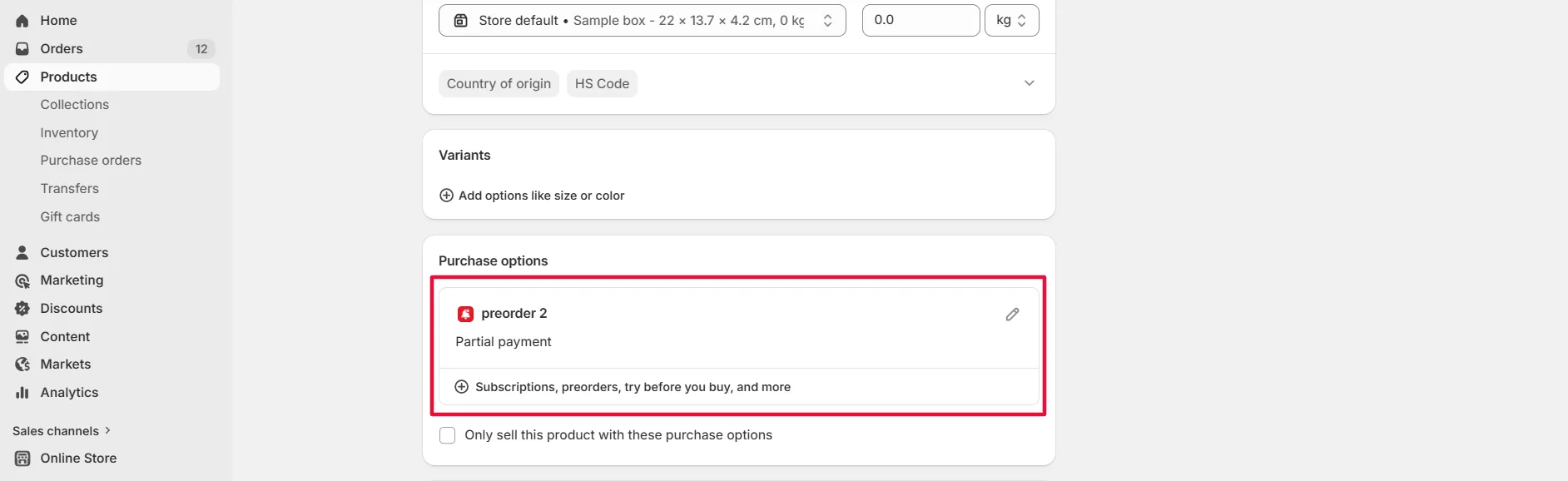
Solution 1: Republish the campaign
Sometimes the product setup doesn’t sync correctly the first time.
What to do:
- Click Unpublish
- Click Publish again
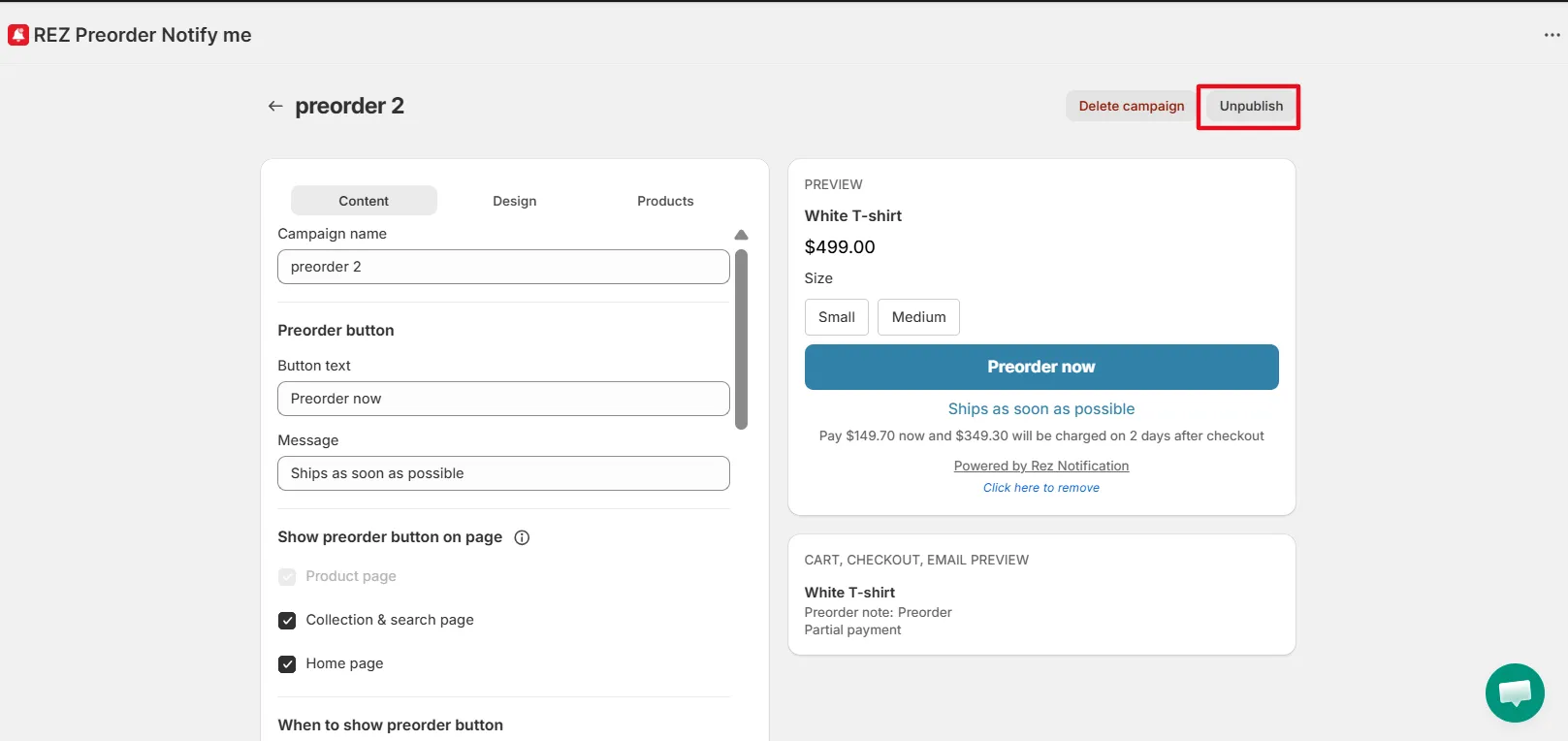
Refresh the product page and test again
Solution 2: Re-apply preorder settings to the product
Sometimes the product setup doesn’t sync correctly the first time.
What to do:
- Go to Products in the preorder campaign
- Click Add settings in the blue banner
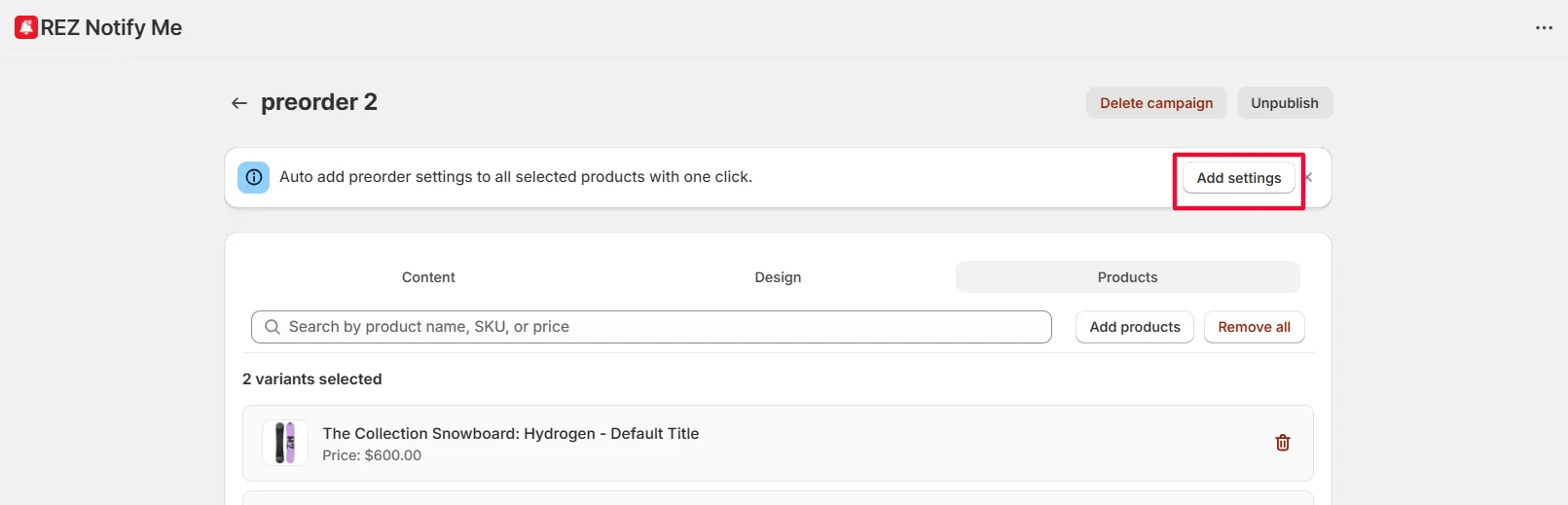
- Refresh the product page and test again
Solution 3: Remove and add the product again
If re-applying doesn’t work, resetting the product setup usually fixes the issue.
What to do:
- Remove the product from your preorder campaign
- Add the product back to the campaign
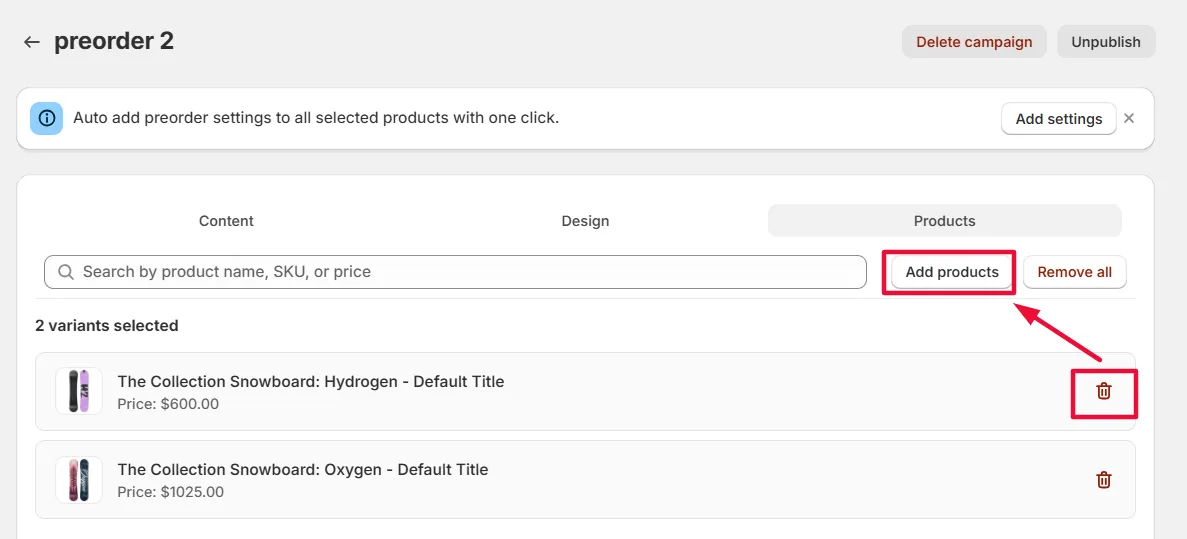
- Save and the campaign
- Test the add-to-cart flow again
Important: Check your inventory settings
Make sure Shopify allows the product to be purchased when it’s out of stock.
How to check:
- Go to the product in Shopify Admin
- Open the Inventory section
- Enable “Continue selling when out of stock”
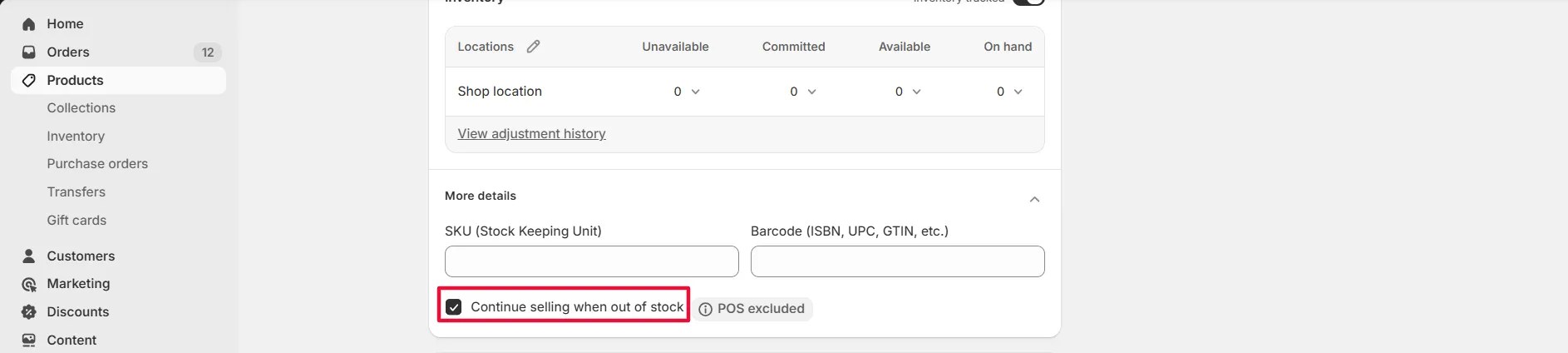
If this option is disabled, customers won’t be able to add preorder items to cart even if the preorder button is visible.
Still having issues?
If the problem continues, please contact our support team and share:
- The campaign name
- The product URL
- A screenshot of your preorder campaign settings
We’ll help you debug it quickly. 🚀
Related
Can’t See the “Preorder” Button? · Can’t See the “Back in Stock” Button? · Can’t See Test / Restock Emails?