Why do we need partner access from your store?
We need temporary access to your store to help you with settings or fix the problem reported. We promise to be careful with every setting on your website. When we fix all problems, you can remove the access from your end.
2 steps to see the store collaborator code
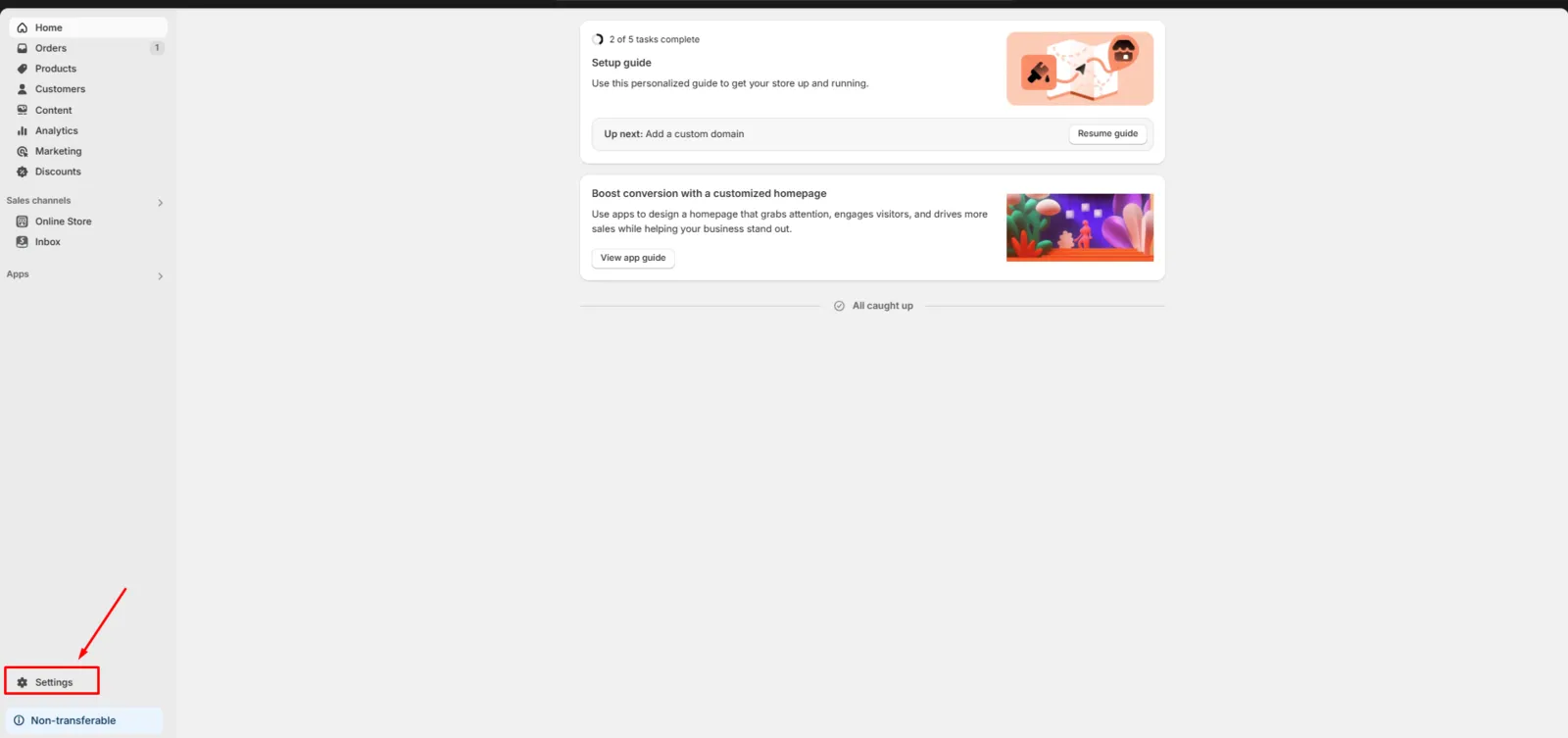
1. In the navigation tab, go to Settings
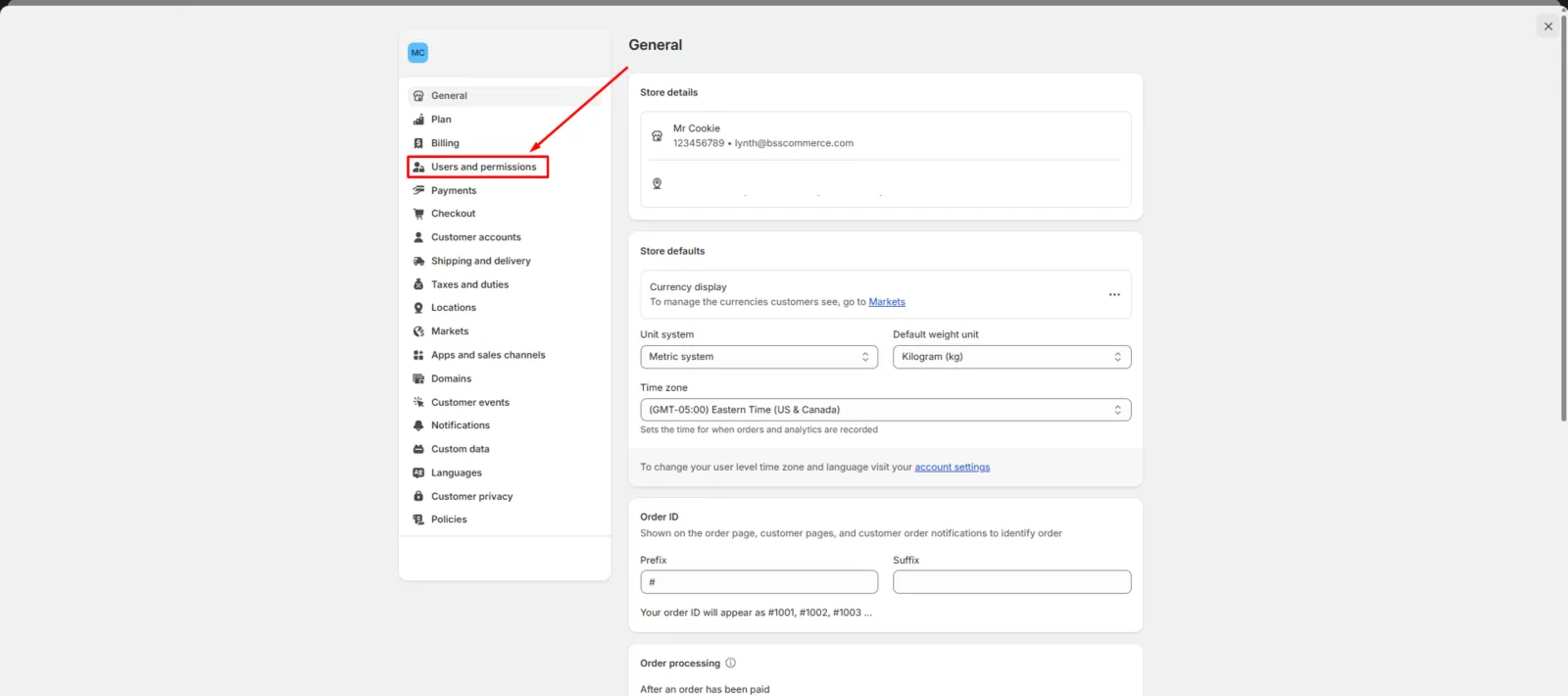
2. In the Settings, go to Users and permissions. You might see it as “Users”. Depend on what you see, please select the correct tab below:
If you see it’s “User and permission”
Go to Users and permissions
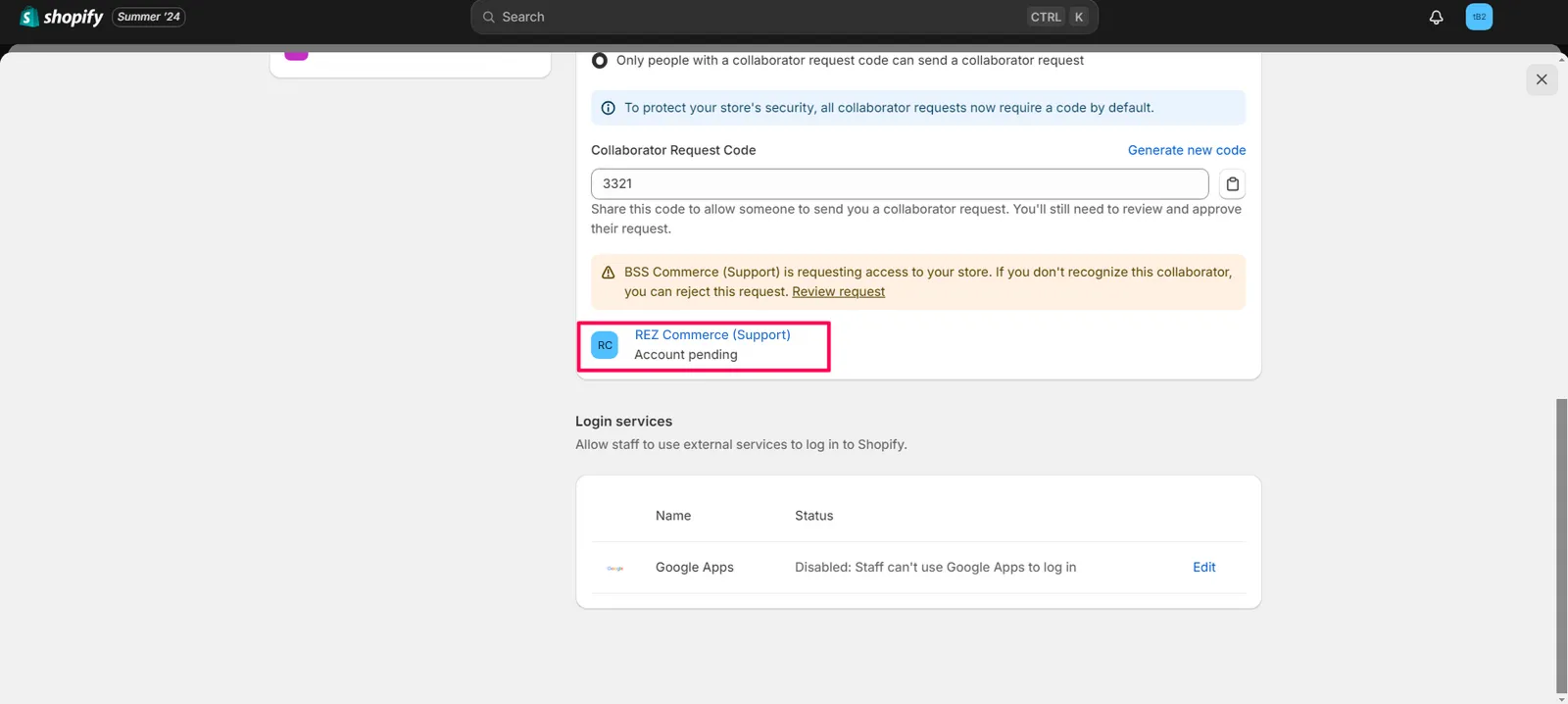
Scroll down to “Collaborators”. You will see “REZ Commerce (Support)” request a collab access. Click on it
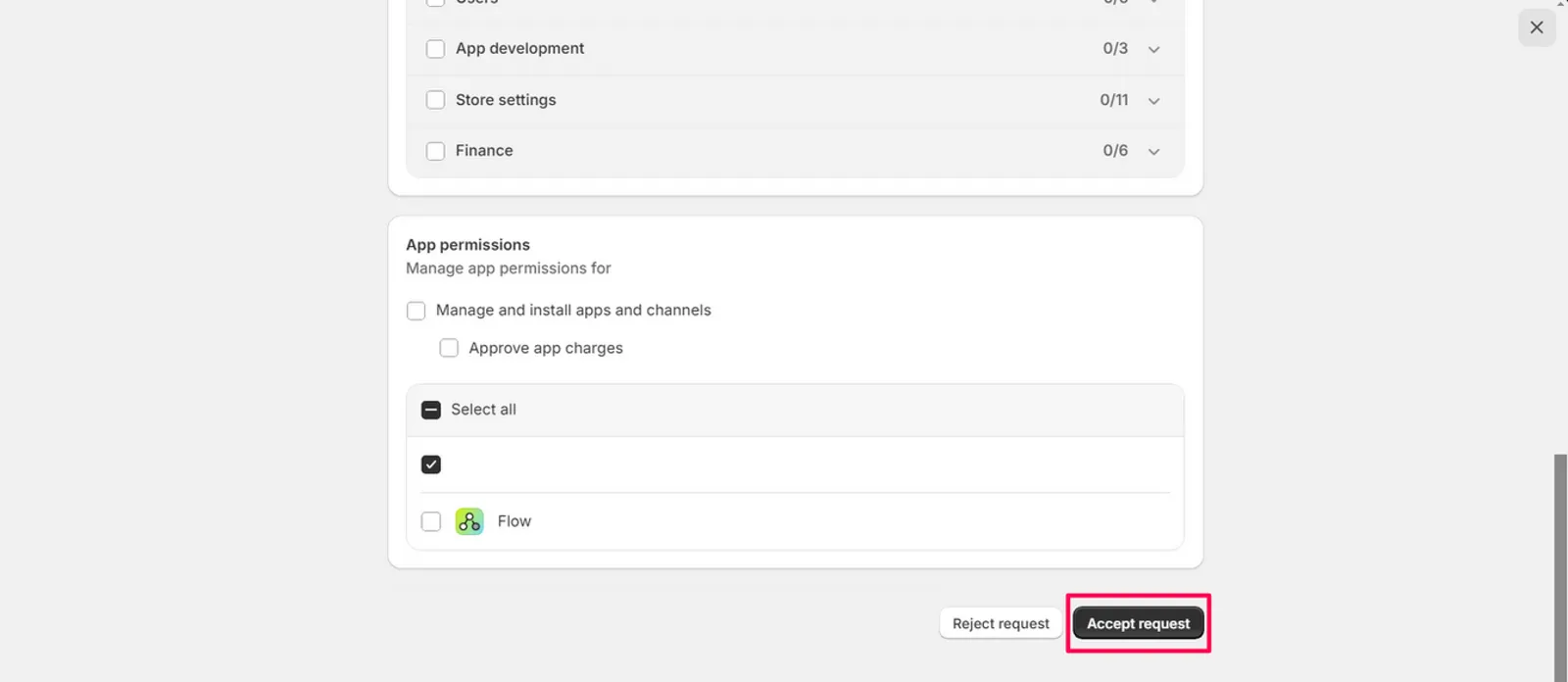
We already ticked the permissions we needed. So you just need to click “accept request”
If you see it’s “Users”
Click on Users > Find REZ Commerce (Support). Click on it
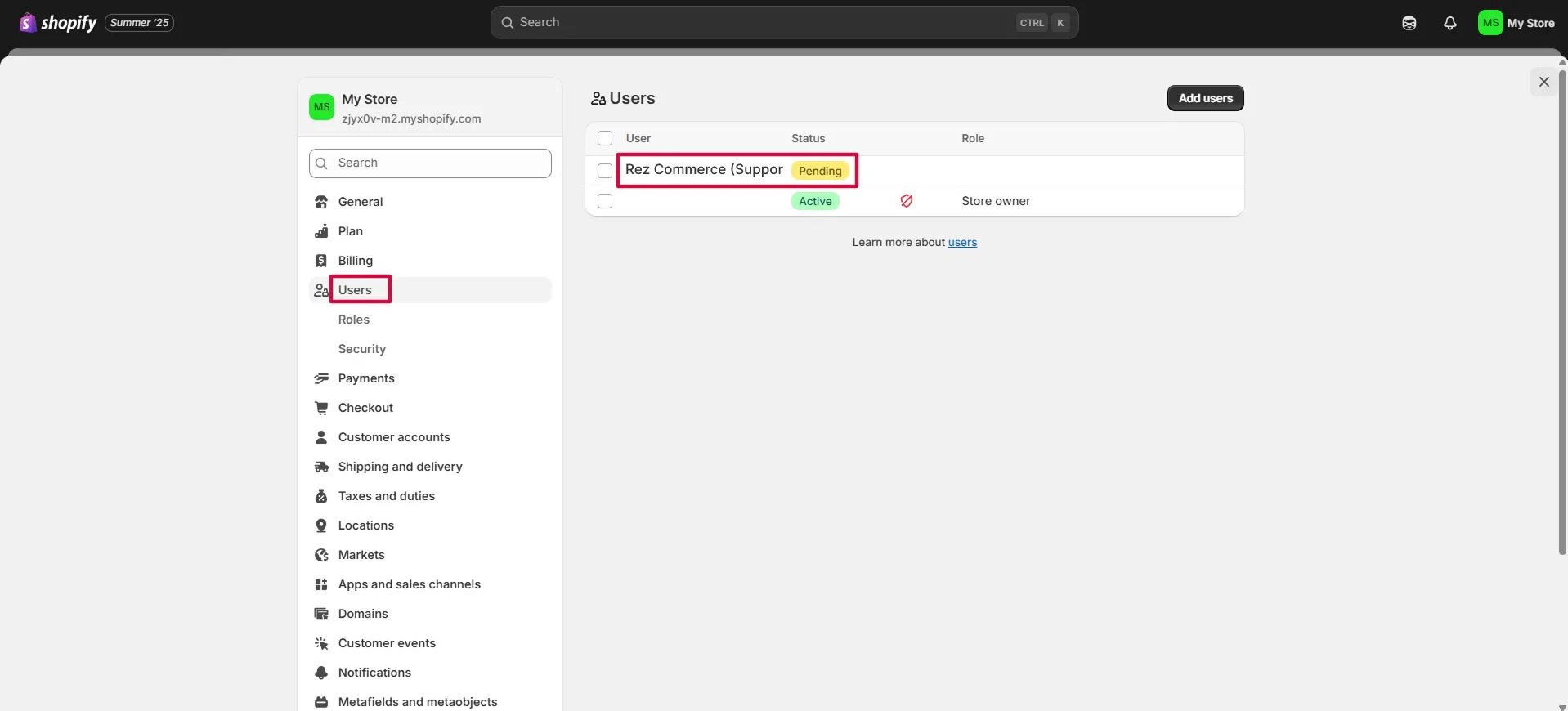
On the tab REZ Commerce (Support) Collaborator, click Accept request
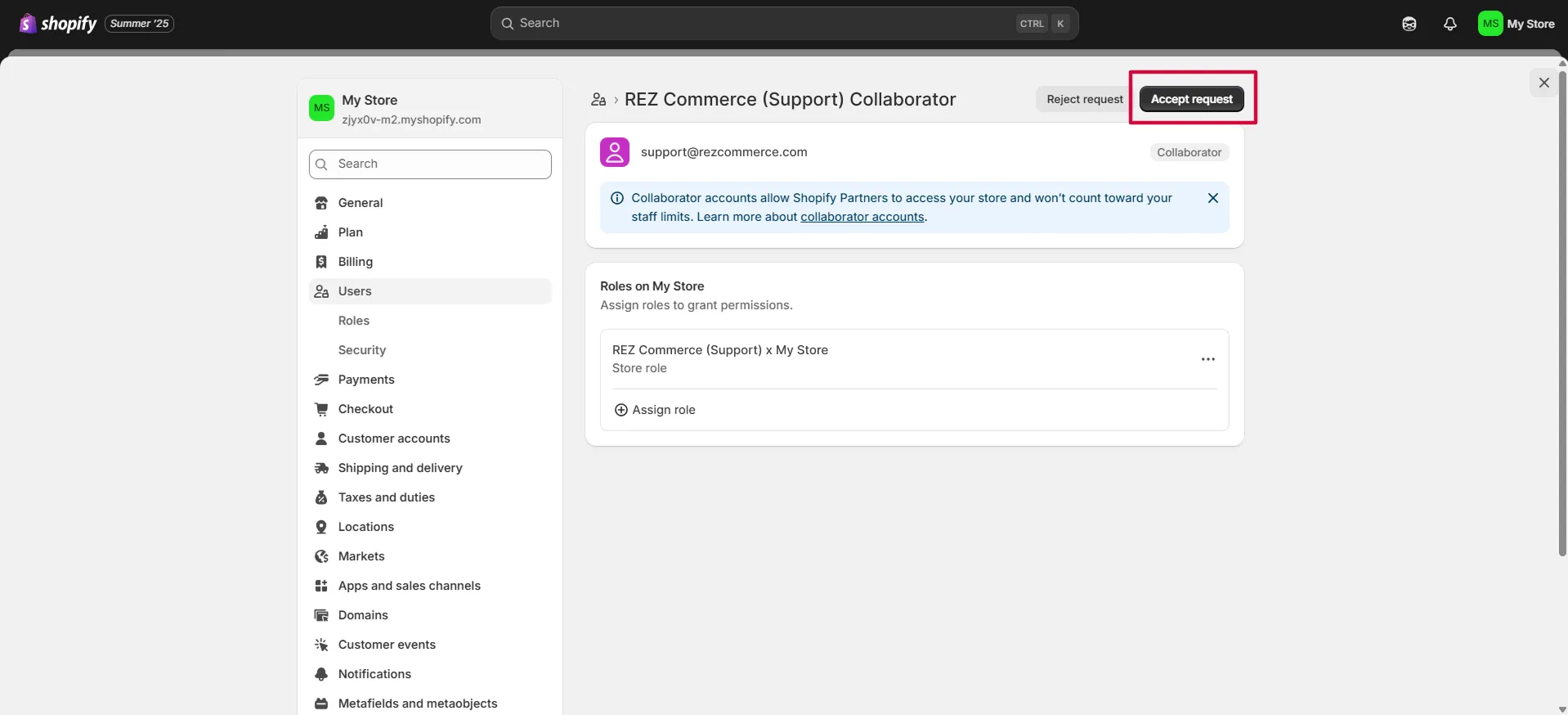
We already ticked the necessary permissions we need. But you can click on Edit permissions to see what permissions we request
Related
REZ Pricing Guideline · See the store's collaborator code · Get to Custom CSS