Payment Options in Essential Preorder
You can choose between two payment options for preorders:
1️⃣ Full Payment
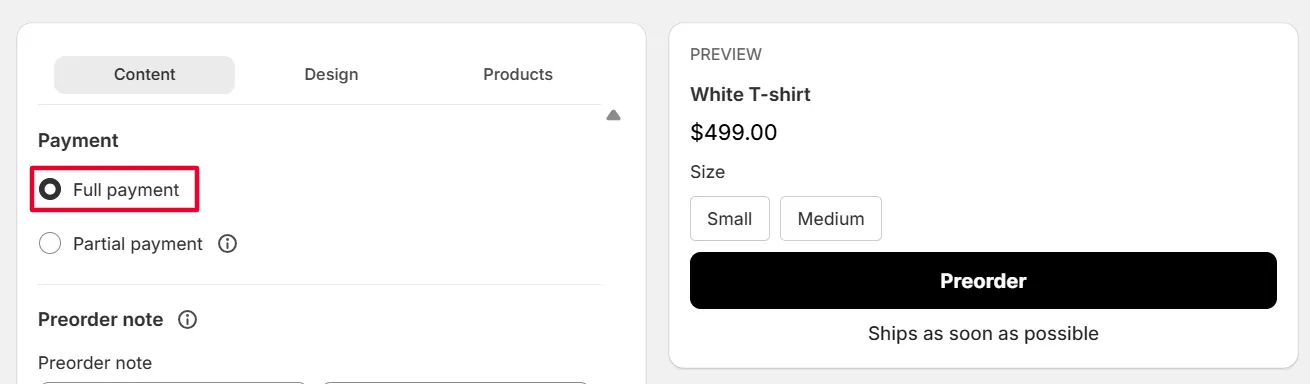
Best for: standard preorders with immediate payment
- Customers pay 100% of the order amount at checkout
- Order is marked as Paid in Shopify
- ✅ Shopify Payments is NOT required
2️⃣ Partial Payment (Deposit)
Best for: high-value items or long production times
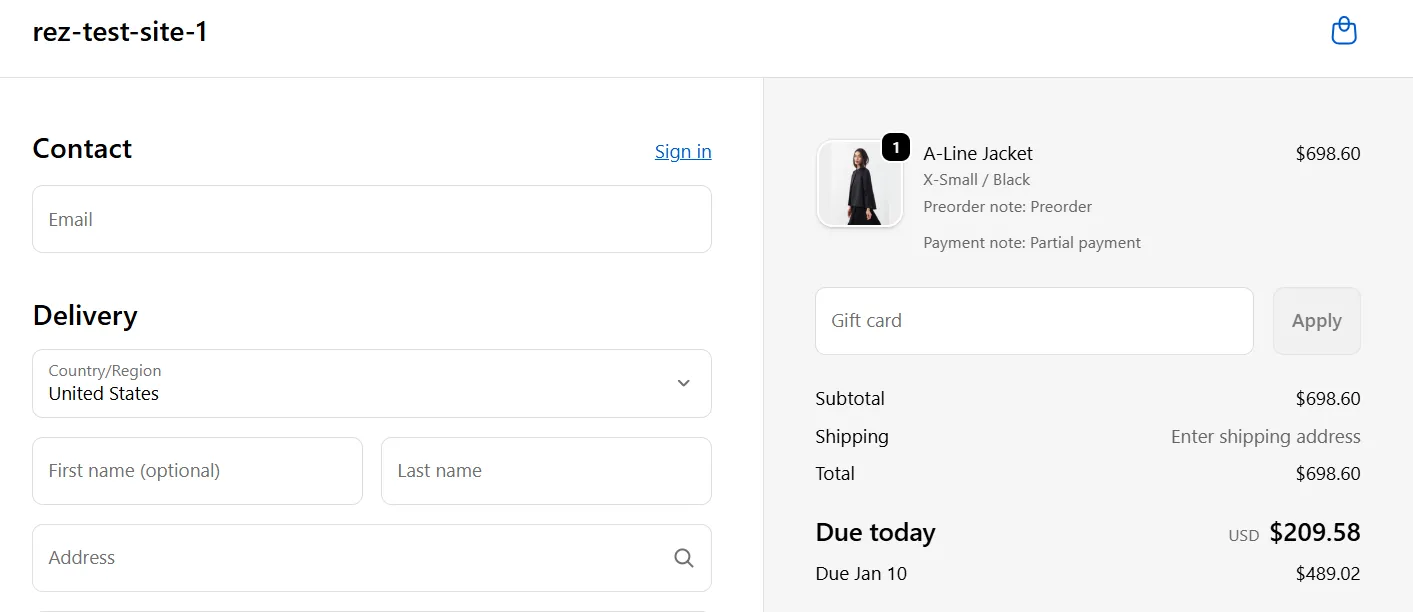
- Customers pay a downpayment at checkout
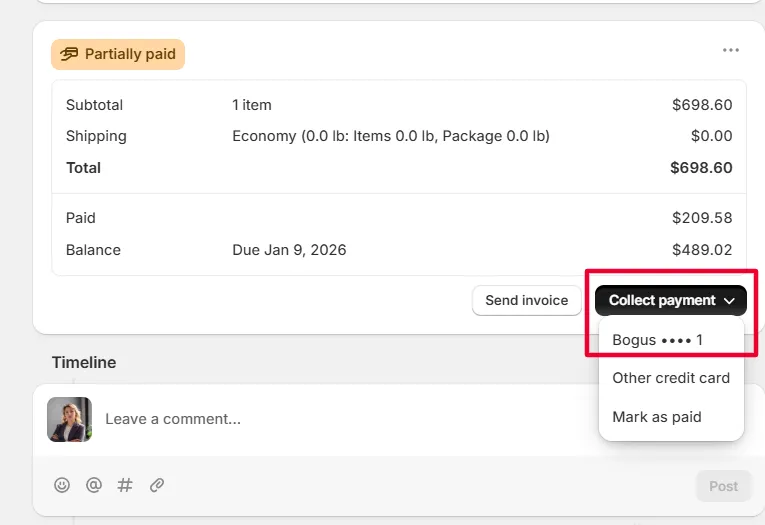
- Remaining balance is collected manually in Shopify admin
You can choose how much to collect upfront (a percentage or a fixed amount) and set a date to collect the remaining balance later.
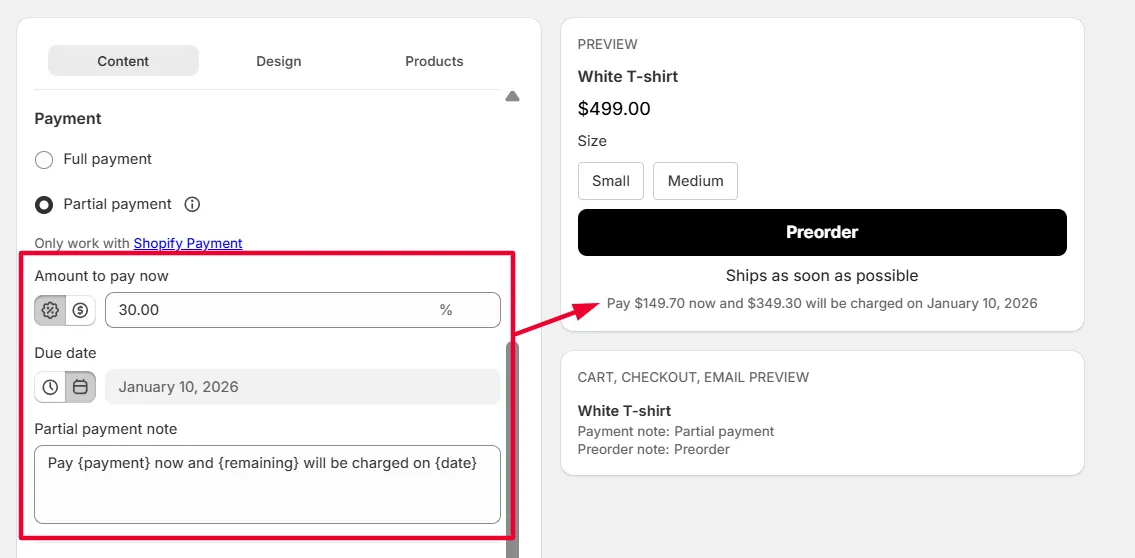
Here is what customer will see on product page:
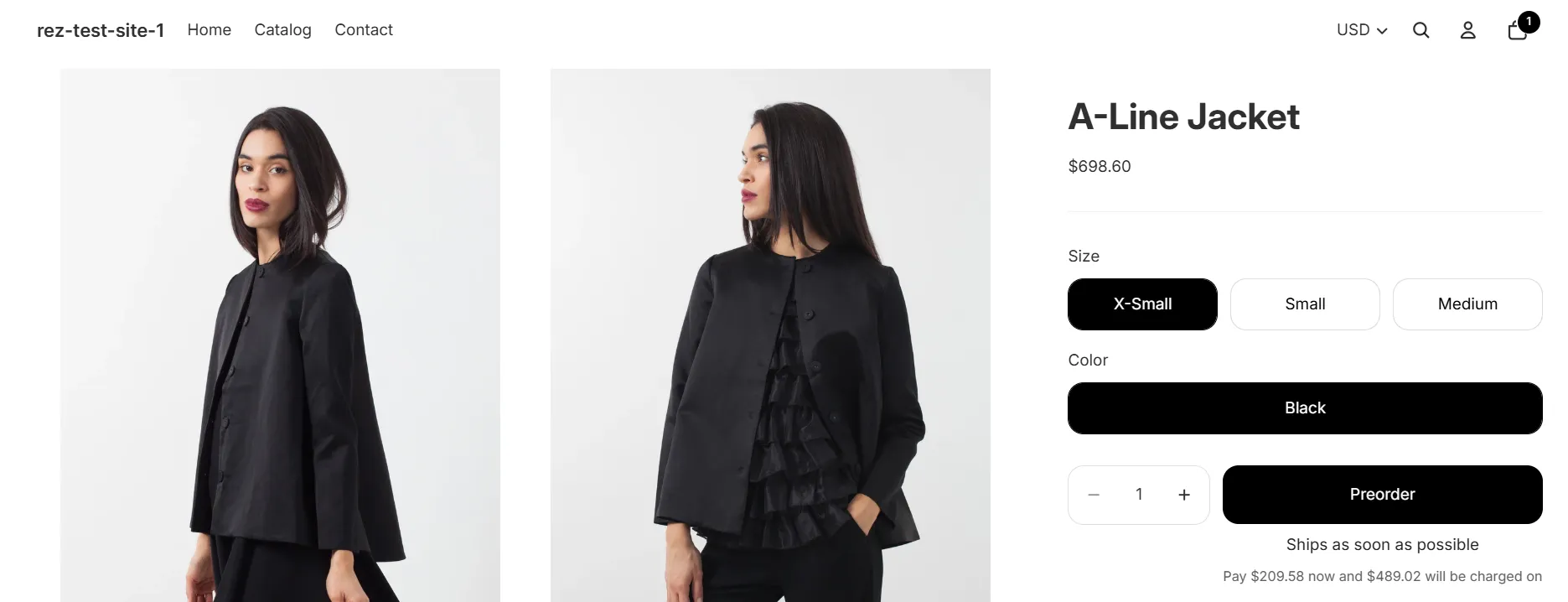
Customer see on checkout page:
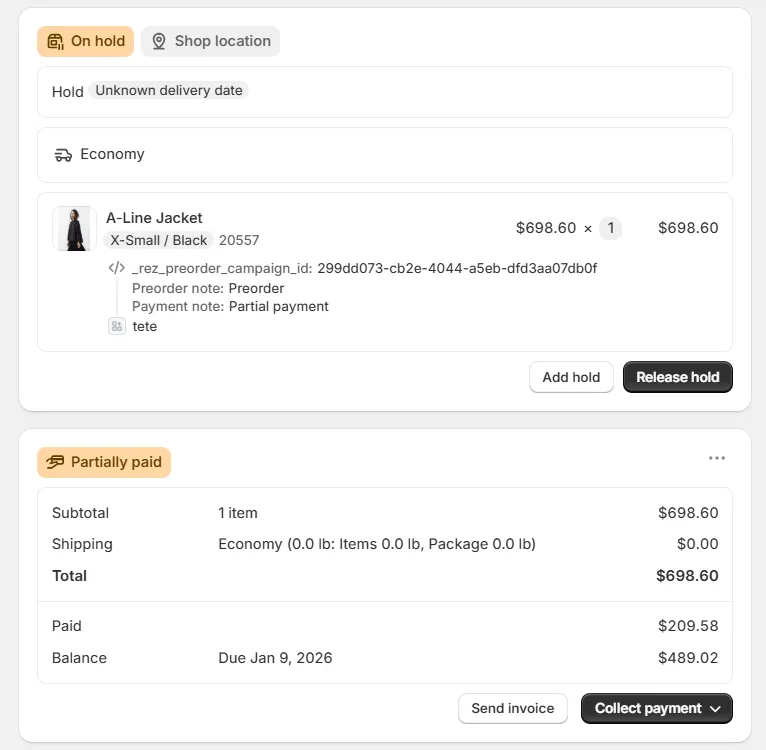
After customers check out (they paid a downpayment), here is what you see on orders:
- Order is marked as Partially Paid

You can then collect remaining balance manually in Shopify admin:
Key settings & notes
- Downpayment can be set to 0 (reserve now, pay later)
- You can set different deposit amounts by creating multiple campaigns
- ✅ Shopify Payments is REQUIRED
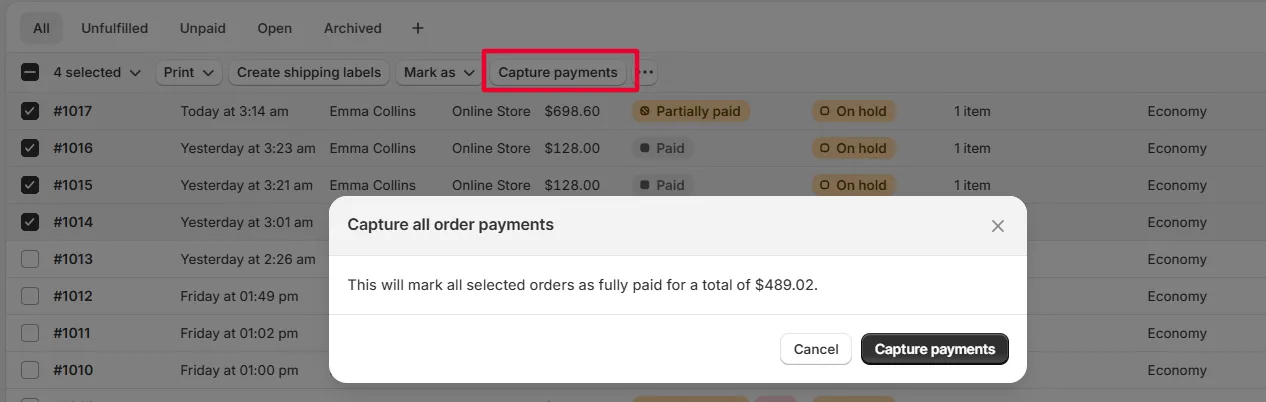
- ⚠️ Do NOT use Shopify’s bulk “Capture payment”
- This does not charge customers
- It only marks orders as paid (known Shopify issue)
Orders & Payment Status in Shopify
How orders appear in the Shopify dashboard
| Payment Option | Order Status |
|---|---|
| Full Payment | Paid |
| Partial Payment | Partially Paid |
| Partial Payment (0 deposit) | Partially Paid |
🔔 Important
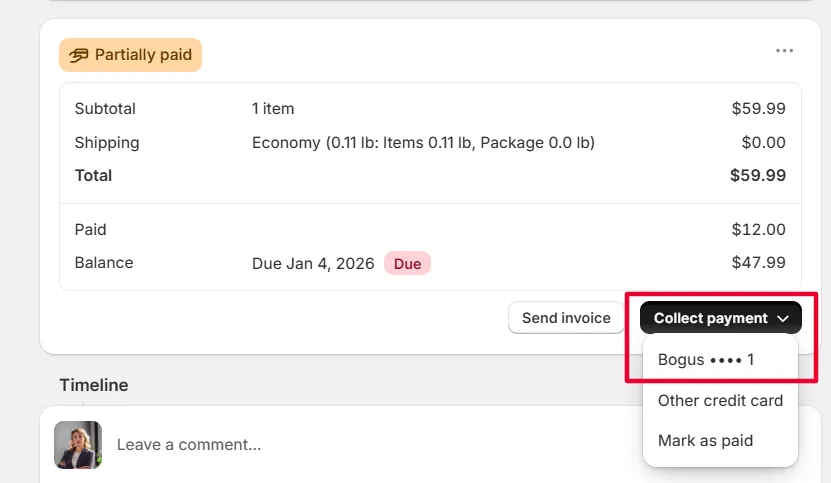
- You must collect the remaining balance manually from the order detail page
- This can be done on the due date or anytime before/after
Fulfillment Best Practices (Deposits Only)
Shopify does not block fulfillment for unpaid balances. We recommend:
- Checking payment status before fulfilling
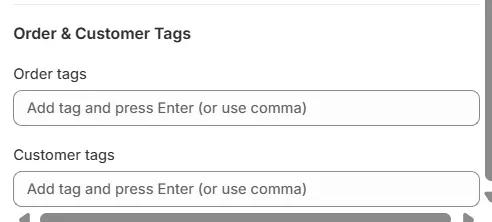
- Adding order tags, such as:
Deposit PaidBalance Due
- Holding fulfillment until the order is fully paid, if required
Refunds & Cancellations
Refunds for partial payments
- You can refund:
- Only the deposit
- Or the full collected amount
- Shopify allows you to cancel any remaining unpaid balance
Non-refundable deposits
- Shopify does not enforce non-refundable deposits
- If needed, clearly state this in:
- Product descriptions
- Preorder terms
- Store policies
Order cancellations
- Customers can cancel preorder items before fulfillment
- This helps maintain transparency and trust
Reporting & Tracking
Track payment status
Use Shopify’s Orders dashboard filters:
- Partially Paid → deposit collected, balance pending
- Paid → full amount collected
Adding order tags can make tracking easier.
Reporting on partial payments
Shopify doesn’t offer a dedicated partial payment report, but you can:
- Export orders to CSV and filter by payment status
- Use Shopify Analytics to track preorder revenue and trends
Summary
- Full payment = simple, immediate charge
- Partial payment = flexible, manual balance collection
- Shopify Payments is required for deposits
- Manual tracking is essential for fulfilment and follow-ups
Related
Payment & App Compatibility with Preorder (using Selling Plan) · Automatically hold Preorder orders (Alternative to REZ Shippings) · Automatically Release Held Preorder Orders