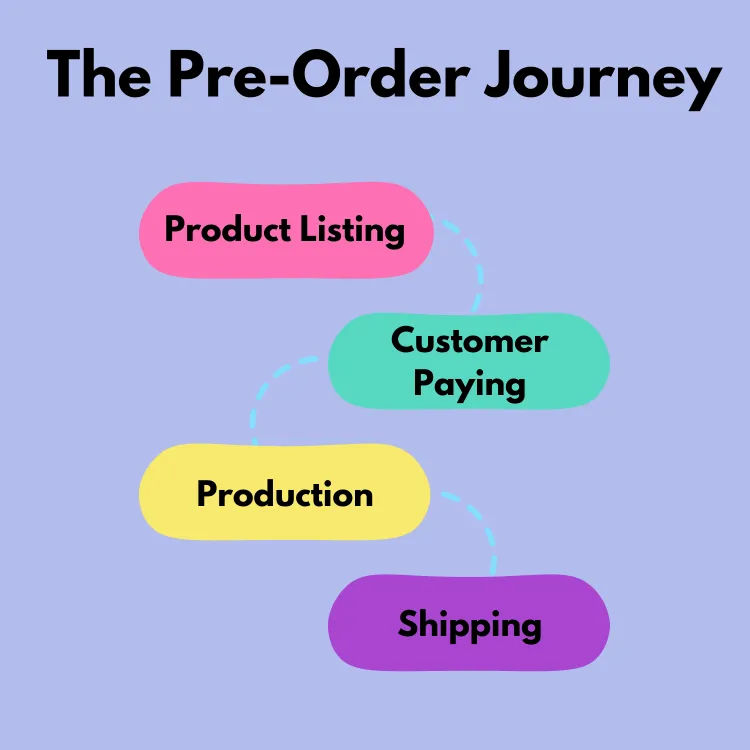
This article explains the 3 main settings for preorder campaigns and how they work.
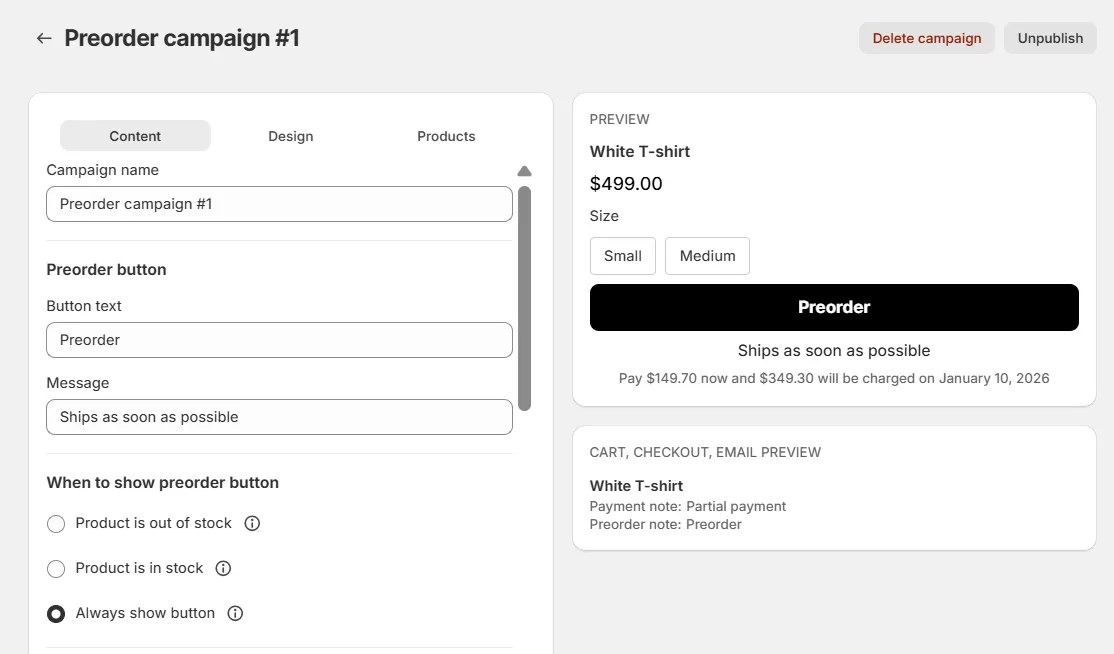
1️⃣ Show Preorder When Product Is Out of Stock
Best for: limited stock items or restocks in progress
When the campaign is published
- ✅ Continue selling when out of stock → ON
- ✅ Track quantity → ON
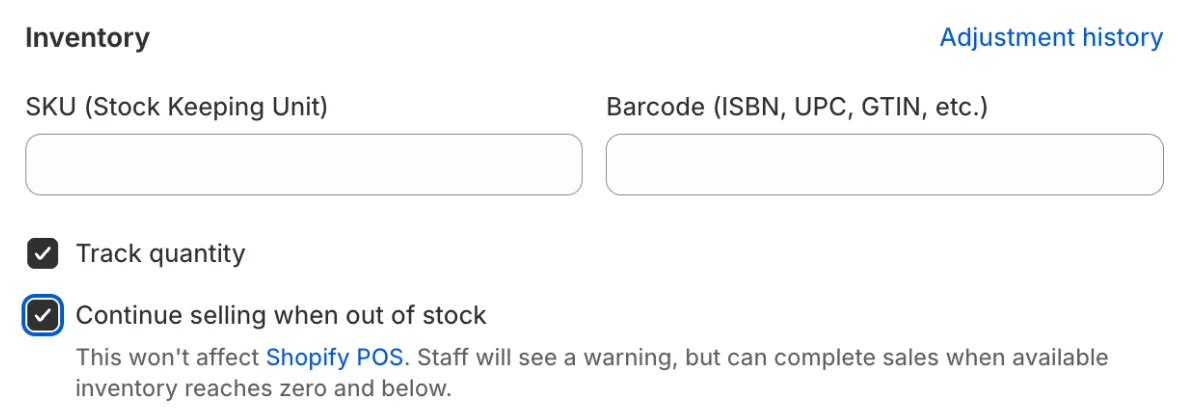
When the campaign is unpublished
- ❌ Continue selling when out of stock → OFF
What customers see
- Preorder button appears when stock = 0
- When stock is added, the button switches back to Add to Cart
2️⃣ Always Show Preorder
Best for: made-to-order products
When the campaign is published
- ✅ Continue selling when out of stock → ON
- ✅ Track quantity → ON
When the campaign is unpublished
- ❌ Continue selling when out of stock → OFF
What customers see
- Preorder button is always visible
- Stock level does not affect the button
3️⃣ Show Preorder When Product Is In Stock
Best for: product launches or long shipping times
When the campaign is published
- ✅ Track quantity → ON
When the campaign is unpublished or deleted
- ✅ No Shopify settings are changed
What customers see
- Preorder button appears when stock > 0
- When stock runs out, the button changes to Sold Out
Quick Comparison
| Setting | When Preorder Button Shows | At 0 Stock |
|---|---|---|
| Show Preorder When Out of Stock | Stock = 0 | Preorder appears |
| Always Show Preorder | Always | Preorder stays |
| Show Preorder When In Stock | Stock > 0 | Sold Out appears |
🎯 Which Option Should You Choose?
- Show Preorder When Out of Stock
→ Keep selling between restocks - Always Show Preorder
→ Produce items after customers order - Show Preorder When In Stock
→ Build launch hype or set expectations for long delivery times
Related
How to make the app work on the online store? · How does back in stock flow works?