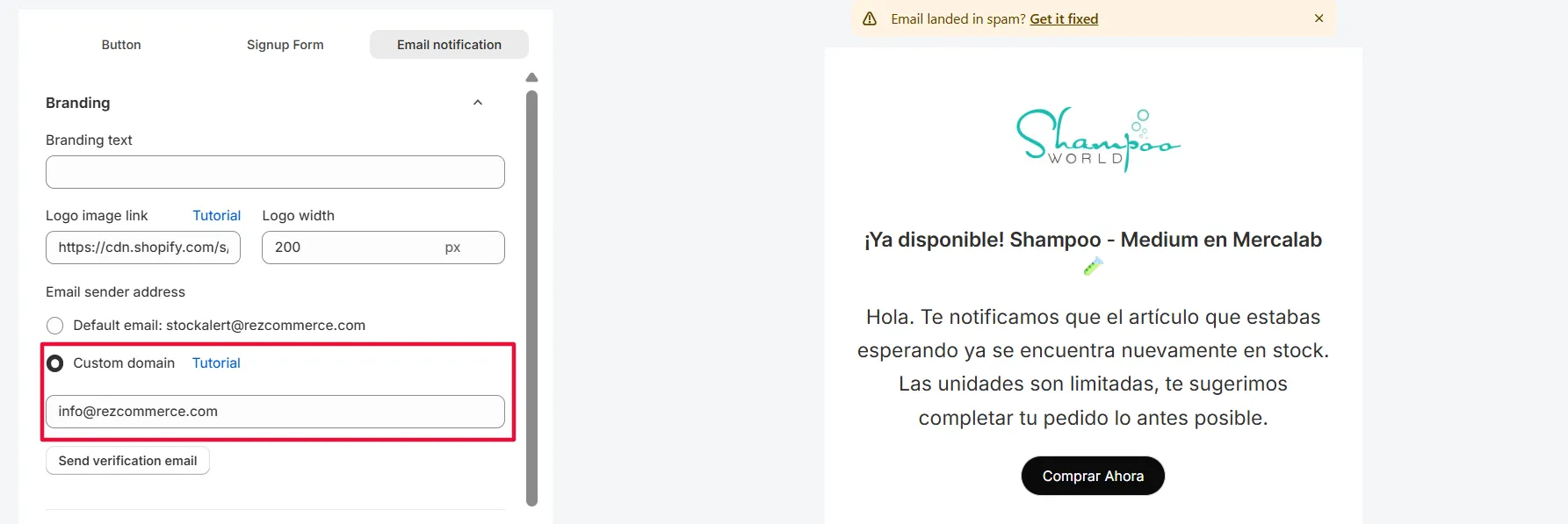
STEP 1: Choose custom domain, enter the email you want to use as the sender.
Note: Do not use a Gmail address (e.g., @gmail.com). Use your own domain, e.g., [email protected].
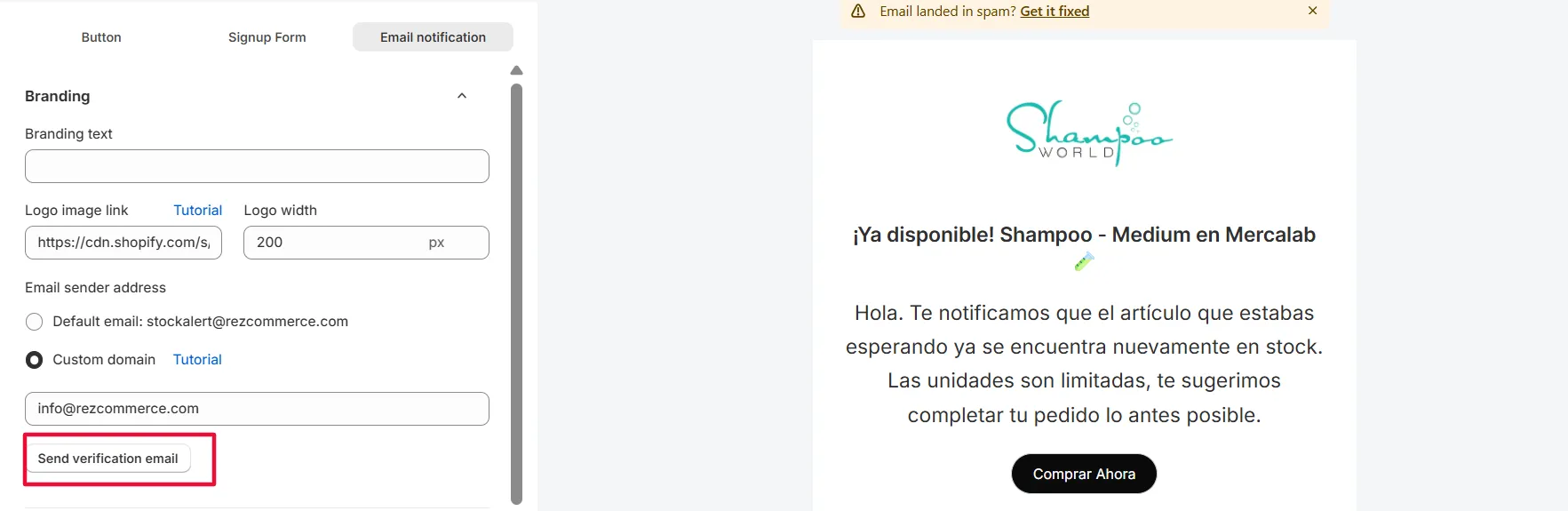
STEP 2: Click “Send verification email” in the app.
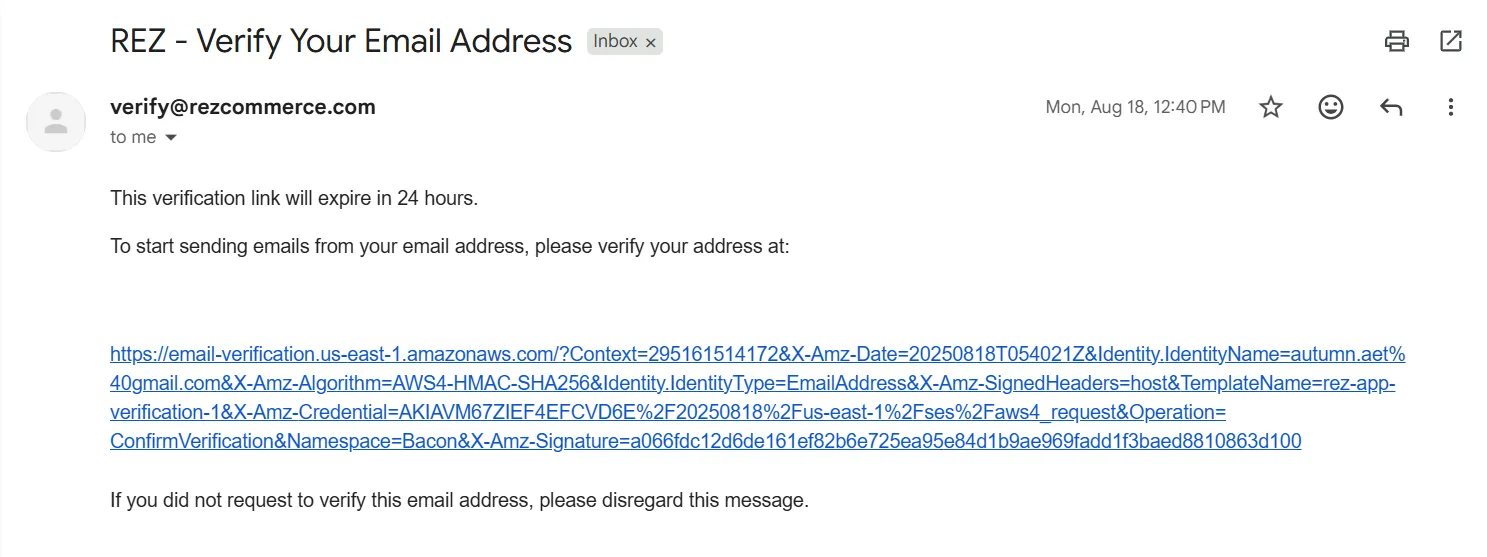
STEP 3: Open the inbox, click verification link
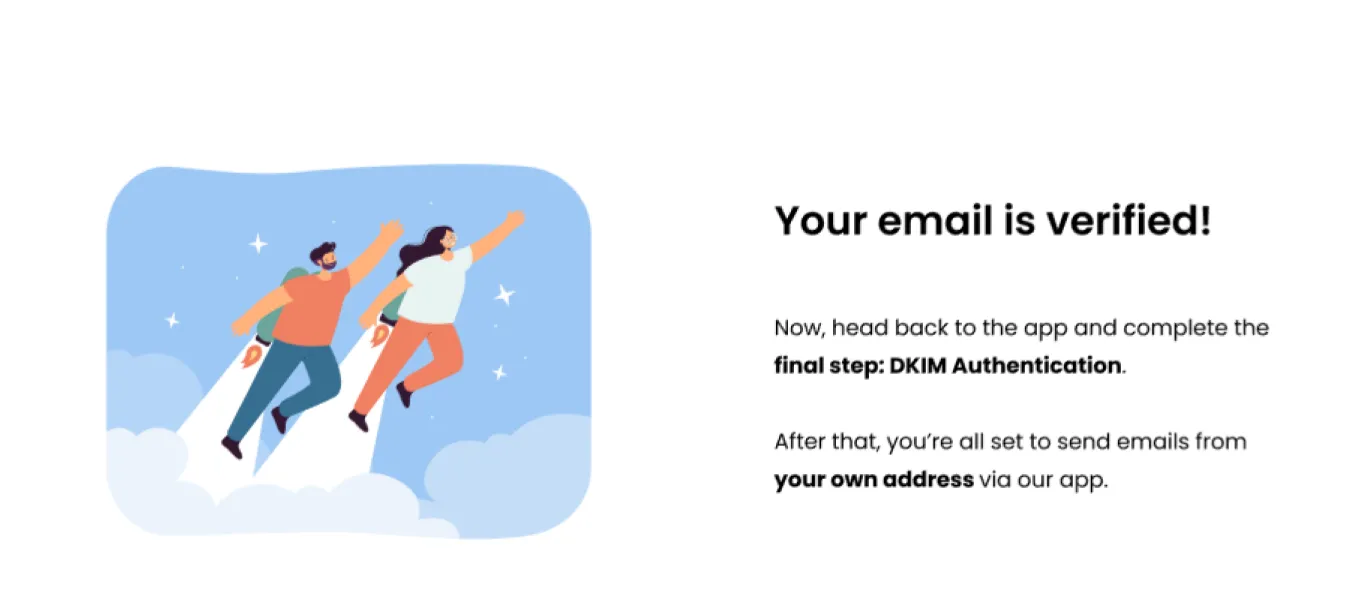
Open the inbox of the email you entered (e.g., [email protected]), find the email from REZ, and click the verification link. You will see a confirmation message after verifying.
STEP 4: Verify DKIM
In order to see the banner, you will need to refresh the app page!
Return to the app and refresh. A banner will appear asking you to verify DKIM. Download the DNS records and follow the instructions to add them to your domain.
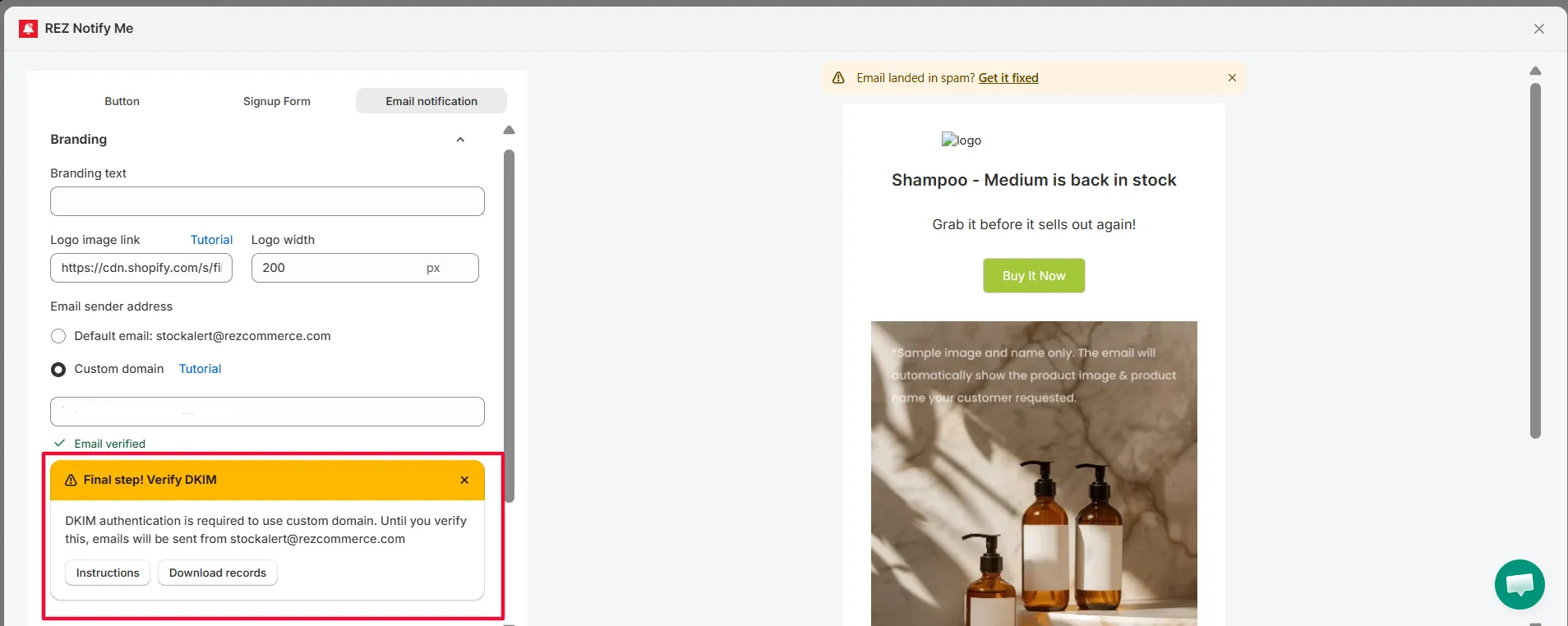
Check this guideline to see how to verify KIM.
STEP 5: Test email sender address
After adding all records, you will need to setup a full back in stock flow to test:
- Have an out-of-stock product
- Register your email
- Restock the product
- Check the email
Related
Back in stock setup guideline · View customer email requests for an out-of-stock product · Add a DKIM Record to Your Domain